<?xml version="1.0" encoding="utf-8"?><feed xmlns="http://www.w3.org/2005/Atom" ><generator uri="https://jekyllrb.com/" version="3.10.0">Jekyll</generator><link href="https://azuredataplatform.net/feed.xml" rel="self" type="application/atom+xml" /><link href="https://azuredataplatform.net/" rel="alternate" type="text/html" /><updated>2026-05-25T18:42:32+00:00</updated><id>https://azuredataplatform.net/feed.xml</id><title type="html">My Azure Data Platform</title><subtitle>Enterprise-level data Democracy!</subtitle><author><name>Hendrik Kampert</name></author><entry><title type="html">Azure Deployment 1 | Initial setup and resource group deployment</title><link href="https://azuredataplatform.net/blog/deployment1_setup_resource_group/" rel="alternate" type="text/html" title="Azure Deployment 1 | Initial setup and resource group deployment" /><published>2022-08-29T05:10:00+00:00</published><updated>2022-08-29T05:10:00+00:00</updated><id>https://azuredataplatform.net/blog/deployment1_setup_resource_group</id><content type="html" xml:base="https://azuredataplatform.net/blog/deployment1_setup_resource_group/"><![CDATA[<p>In this series <strong>azure-deployments</strong> we will deploy our infrastructure to azure.
The first step is to set up some basics and deploy a resource group.</p>

<p>I use github actions as it is pretty powerful and simple.</p>

<blockquote>
  <p><strong>Important</strong>: If you use enterprise github you need a self-hosted runner which needs to be installed on a VM
github.com does not need this</p>
</blockquote>

<h1 id="initialize-a-new-repository">Initialize a new repository</h1>

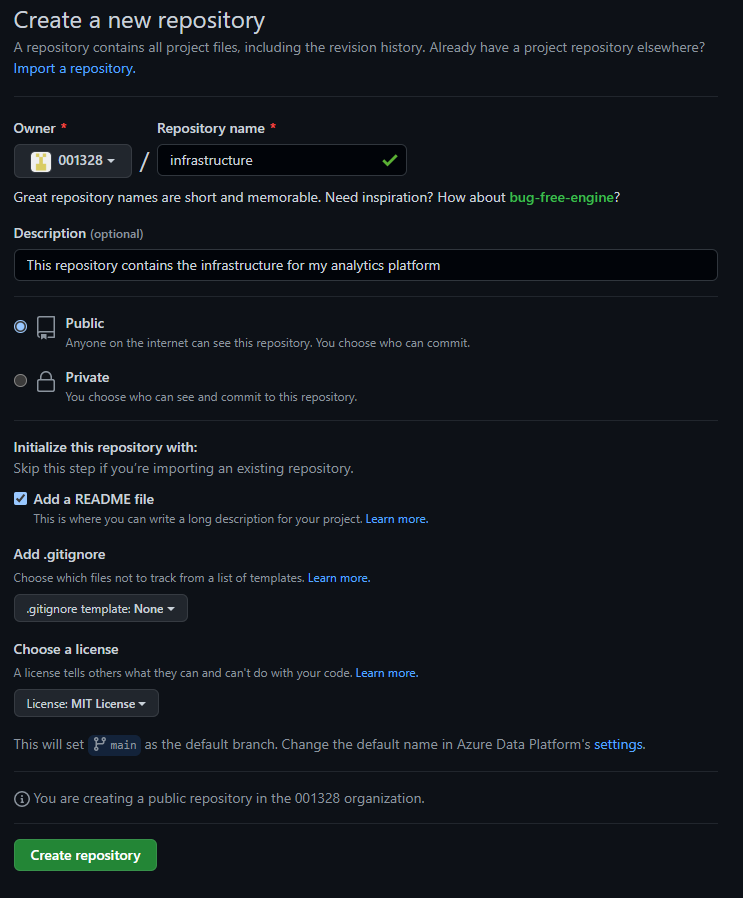
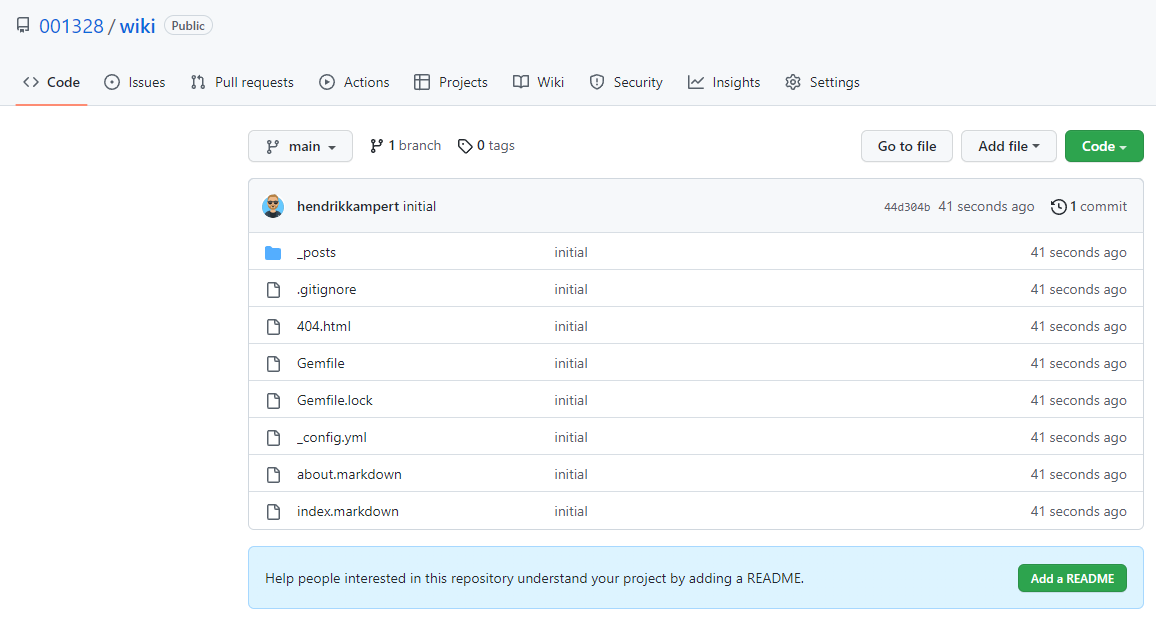
<p>First, create a new repository called <em>infrastructure</em>.</p>
<blockquote>
  <p>I created it as a public repository so anyone can clone it and deploy my infrastructure to play around with it.</p>
</blockquote>

<p><img src="/assets/images/az-deployments0-0.png" alt="picture" /></p>

<h1 id="clone-repository">clone repository</h1>

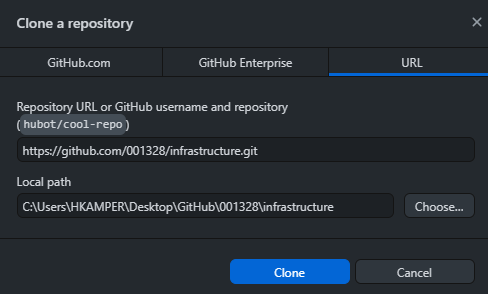
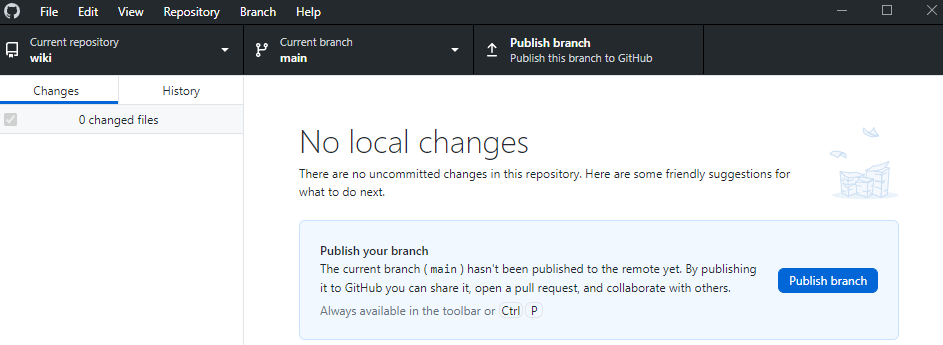
<p>Now clone the folder to your local computer.</p>

<p>Go to <em>Code</em>, then copy the link. Now go to your GitHub Desktop and Add the repository to the root folder - <em>001328</em> in my case.</p>

<p><img src="/assets/images/az-deployments0-01.png" alt="picture" /></p>

<h1 id="set-up-credentials">set up credentials</h1>

<p>The next step is to set up the azure credentials we will need to deploy anything into our azure subscription.
We do this via <strong>GitHub Secrets</strong>.</p>

<blockquote>
  <p>Secrets are environment variables that are encrypted. Anyone with collaborator access to this repository can use these secrets for Actions.
Secrets are not passed to workflows that are triggered by a pull request from a fork. <a href="https://docs.github.com/actions/automating-your-workflow-with-github-actions/creating-and-using-encrypted-secrets">Learn more</a>.</p>
</blockquote>

<p>Let’s start with adding three secrets.</p>

<ul>
  <li>subscriptionid</li>
  <li>azurelogincreds</li>
  <li>resourcegroupname</li>
</ul>

<p>All secrets we use for now are repository secrets. Later on we will add multiple environments and change the secrets to reflect these changes.</p>

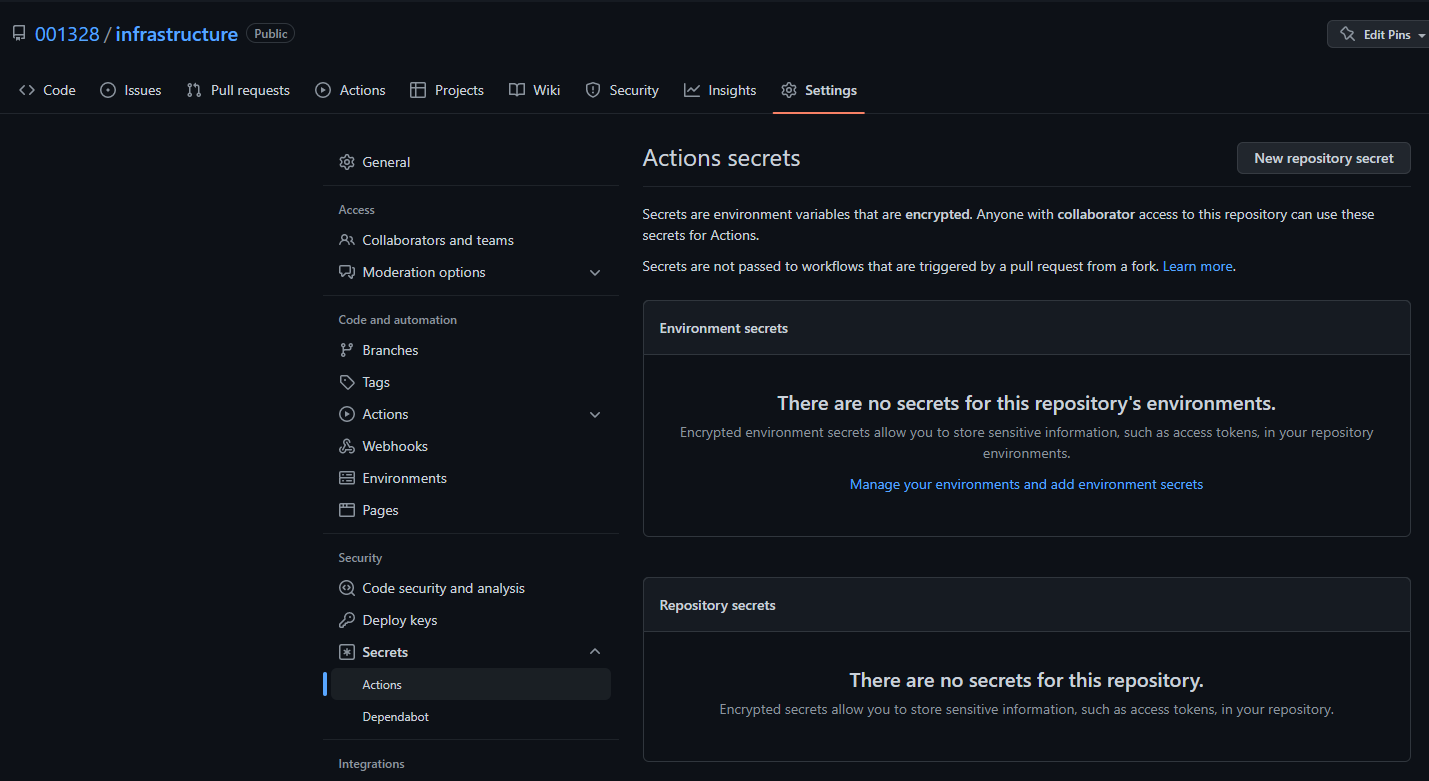
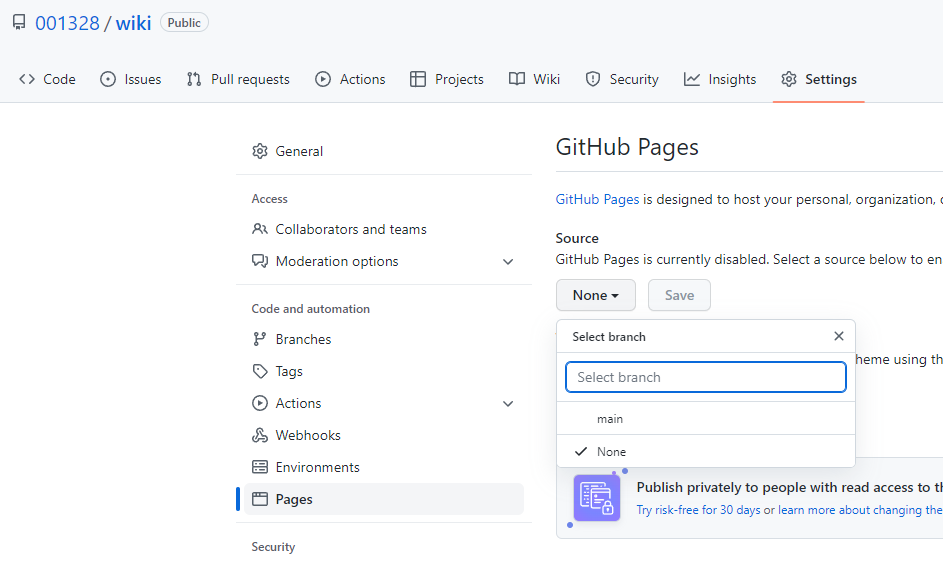
<p>To start, go to the Tab <strong>Settings</strong> and then you will find <strong>Secrets</strong> in the Navigation pane on the left. Here, select <strong>Actions</strong>.</p>

<p><img src="/assets/images/az-deployments0-02.png" alt="picture" /></p>

<h2 id="subscriptionid">subscriptionid</h2>

<p>First we will start with a subscriptionid.</p>

<p>Open the <a href="https://portal.azure.com/">azure portal</a> and search for <strong>subscriptions</strong> in the search bar on top.</p>

<p><img src="/assets/images/az-deployments0-03.png" alt="picture" /></p>

<p>From here either select the subscription you want to use or create a new one if it is empty.
Copy the Subscription ID, it should have this format xxxxxxxx-xxxx-xxxx-xxxx-xxxxxxxxxxxx.</p>

<p>Switch back to the github tab and add a new repository secret via the button.</p>

<p><img src="/assets/images/az-deployments0-04.png" alt="picture" /></p>

<p>Then add the Subscription ID as the VAlue and give it a name you like.</p>

<blockquote>
  <p>I always use lowercaps without hyphens, underscores or other funky stuff as different tools sometimes don’t like it and this way I can keep it consistent!
Also no numbers at the beginning or end
Here it doesn’t matter as GitHub transforms your secret in UPPERCAPS anyways</p>
</blockquote>

<p>And you are done!</p>

<p><img src="/assets/images/az-deployments0-06.png" alt="picture" /></p>

<blockquote>
  <p><strong>Please note</strong> that nobody can see this secret again so make sure to save it in your password safe of choice</p>
</blockquote>

<p>You can only update the secret, if you do then you have to re-enter it and save again!</p>

<h2 id="azurelogincreds">azurelogincreds</h2>

<p>The next secret we add are azurelogincreds.</p>

<p>These are the azure login credentials GitHub uses login to azure and create resources.
To do this it uses a <a href="https://docs.microsoft.com/en-us/azure/active-directory/develop/app-objects-and-service-principals">Service Principal</a> which we will create before.</p>

<p>The azure login credentials have this format:</p>

<p>{
“clientId”: “xxxxxxxx-xxxx-xxxx-xxxx-xxxxxxxxxxxx”,
“clientSecret”: “xxxxxxxxxxxx”,
“subscriptionId”: “xxxxxxxx-xxxx-xxxx-xxxx-xxxxxxxxxxxx”,
“tenantId”: “xxxxxxxx-xxxx-xxxx-xxxx-xxxxxxxxxxxx”
}</p>

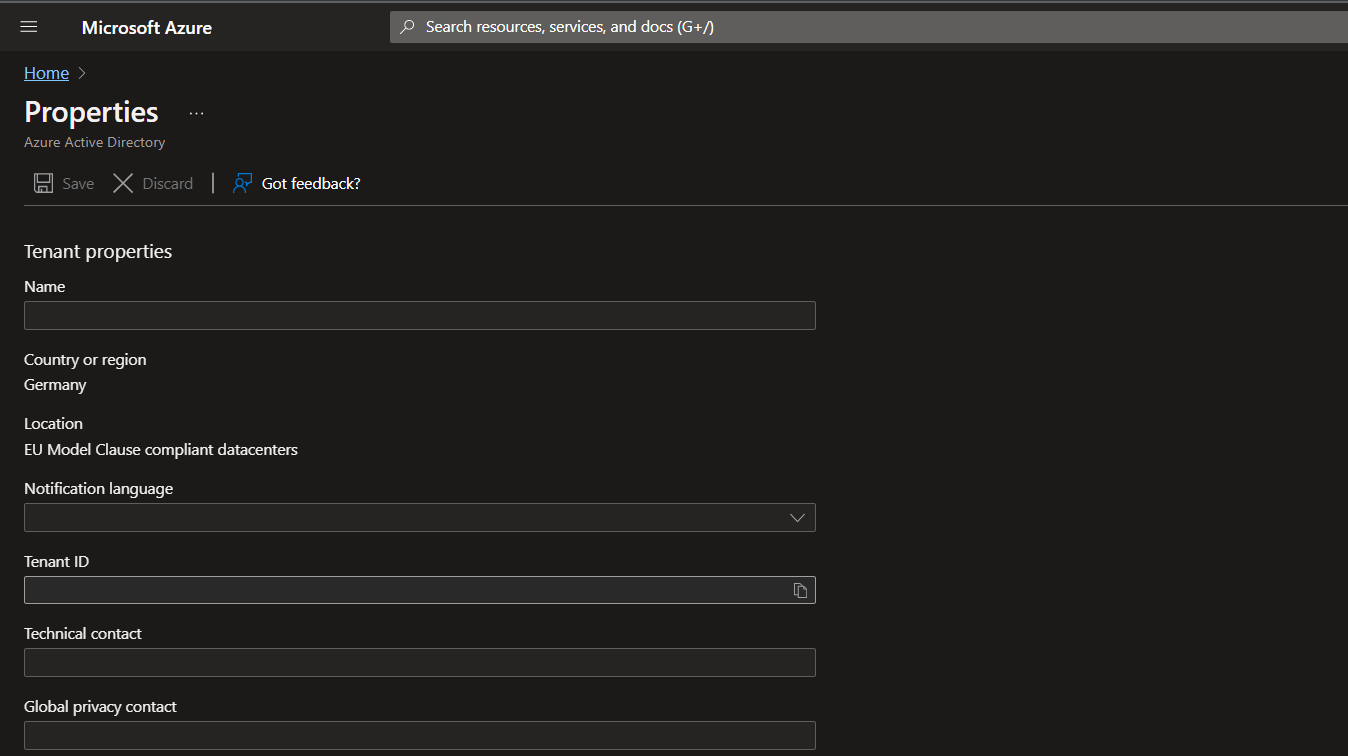
<p>We already have the subscriptionId and you can find the tenantId by searching for <strong>tenant properties</strong> in the azure search bar (just like you did for the Subscription ID).</p>

<p><img src="/assets/images/az-deployments0-07.png" alt="picture" /></p>

<p>In the properties you can copy the Tenant ID by selecting the little Icon next to the ID.</p>

<p><img src="/assets/images/az-deployments0-08.png" alt="picture" /></p>

<p>Next step: Get a clientId and the clientSecret. This is a Service Principal.</p>

<h2 id="service-principal-setup">Service Principal setup</h2>

<ul>
  <li>Search for App registrations</li>
</ul>

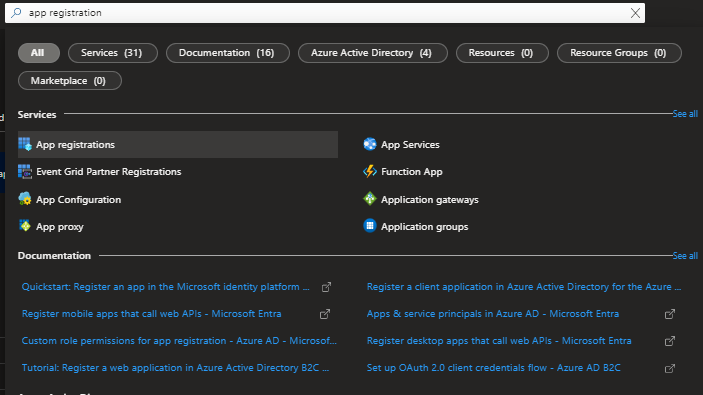
<p><img src="/assets/images/az-deployments0-09.png" alt="picture" /></p>

<ul>
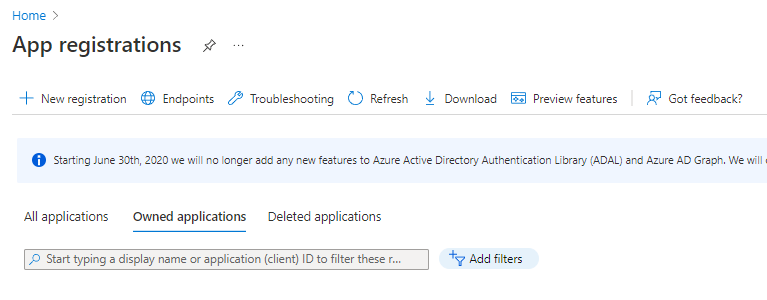
  <li>select <strong>New registration</strong></li>
</ul>

<p><img src="/assets/images/az-deployments0-10.png" alt="picture" /></p>

<ul>
  <li>
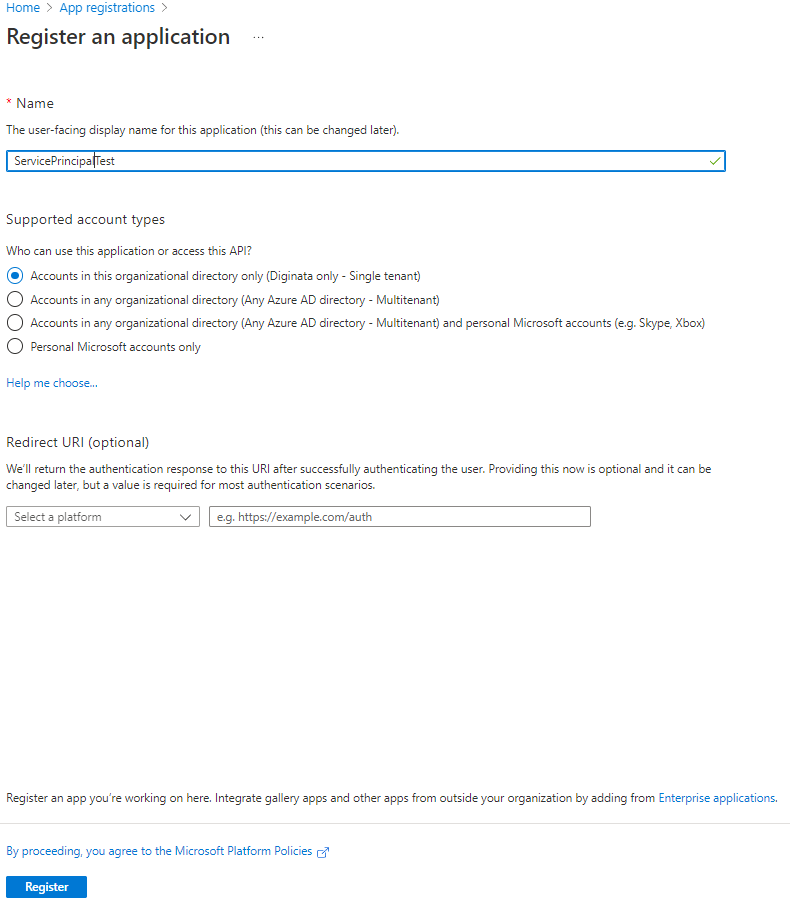
    <p>give it a good name and select <strong>Register</strong>
<img src="/assets/images/az-deployments0-11.png" alt="picture" /></p>
  </li>
  <li>
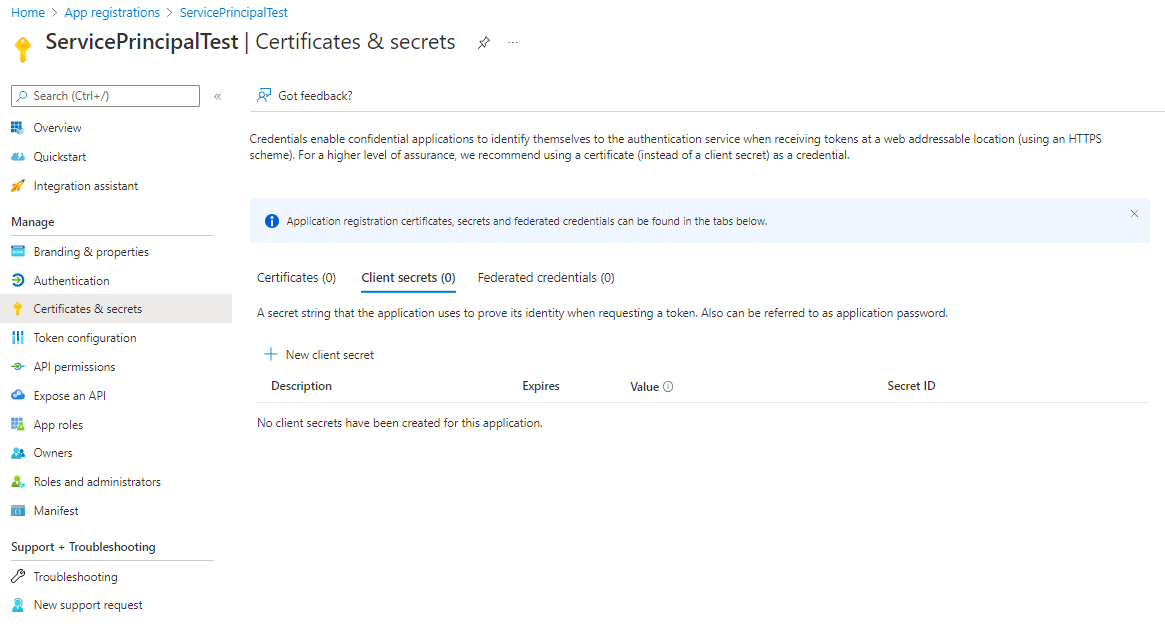
    <p>select <strong>Certificates &amp; secrets</strong> on the left blade, then select <strong>New client secret</strong>
<img src="/assets/images/az-deployments0-12.png" alt="picture" /></p>
  </li>
  <li>
    <p>choose a good name, an expiration date (good habits for security) and add the secret
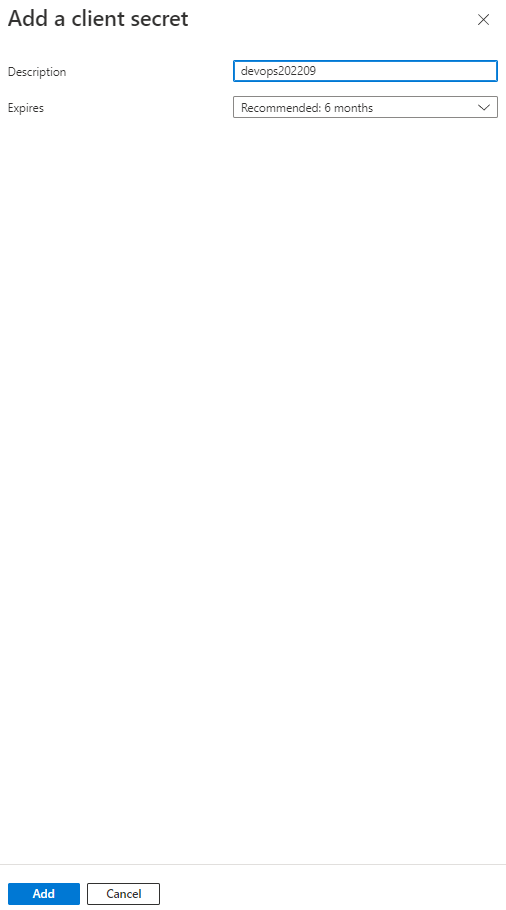
<img src="/assets/images/az-deployments0-13.png" alt="picture" /></p>
  </li>
  <li>
    <p>save the <em>value</em> in a <strong>secure location</strong> (like Keepass - yes, notepad++ - no). You can only see the value one time.

<img src="/assets/images/az-deployments0-14.png" alt="picture" /></p>
  </li>
  <li>
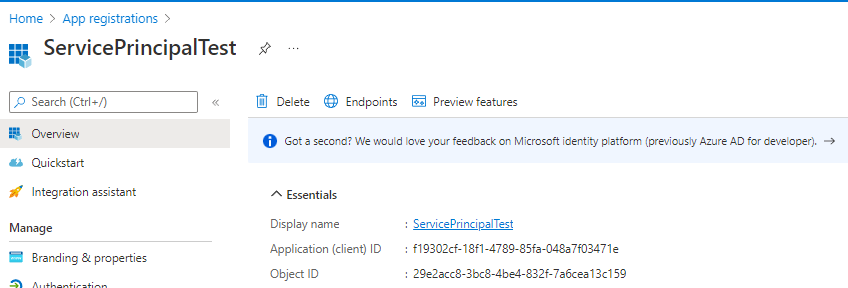
    <p>go to the <strong>Overview</strong> and you can copy the client ID
<img src="/assets/images/az-deployments0-15.png" alt="picture" /></p>
  </li>
</ul>

<p>Now we have everything we need to complete the azure login credentials! Here is an example how it should look like (subscriptionId and tenantId are randomized):</p>

<figure class="highlight"><pre><code class="language-powershell" data-lang="powershell"><span class="p">{</span><span class="w">
</span><span class="s2">"clientId"</span><span class="p">:</span><span class="w"> </span><span class="s2">"f19302cf-18f1-4789-85fa-048a7f03471e"</span><span class="p">,</span><span class="w">
</span><span class="s2">"clientSecret"</span><span class="p">:</span><span class="w"> </span><span class="s2">"fdr8Q~Z60kVE3zjGfOCl3EMtmy~ZCx2dL5pLic~k"</span><span class="p">,</span><span class="w">
</span><span class="s2">"subscriptionId"</span><span class="p">:</span><span class="w"> </span><span class="s2">"64dbf7h2x-5oi4-4ap8-d7r2-de5489b4j8pq"</span><span class="p">,</span><span class="w">
</span><span class="s2">"tenantId"</span><span class="p">:</span><span class="w"> </span><span class="s2">"73xz6g8q-6uu2-1tt2-j6i8-po7823l5j5qs"</span><span class="w">
</span><span class="p">}</span></code></pre></figure>

<blockquote>
  <p>In case you work for a bigger Enterprise you will see an <strong>Access denied</strong>.
Then you need to set up the service principal through an alternative route, please talk to your network team to do so. The company I work for has a separate tool to create anything in the Active Directory and I need a dedicated admin user to create a client secret.</p>
</blockquote>

<ul>
  <li>Go back to the <strong>Settings</strong> in your GitHub Repository and select <strong>New repository secret</strong>
<img src="/assets/images/az-deployments0-16.png" alt="picture" /></li>
</ul>

<p>Whatever you will deploy now will be deployed to the Tenant and Subscription you entered. For multiple Environments I recommend to have one secret each.</p>
<ul>
  <li>azurelogincreds_dev</li>
  <li>azurelogincreds_test</li>
  <li>azurelogincreds_prod</li>
</ul>

<hr />

<p><strong>I need to give permissions to the service principal I suppose</strong></p>

<hr />

<p><strong>Done with the preparation!</strong></p>

<h1 id="next-step-deploy-a-resource-group">Next step: Deploy a resource group</h1>

<h2 id="secret-resourcegroupname">Secret: resourcegroupname</h2>

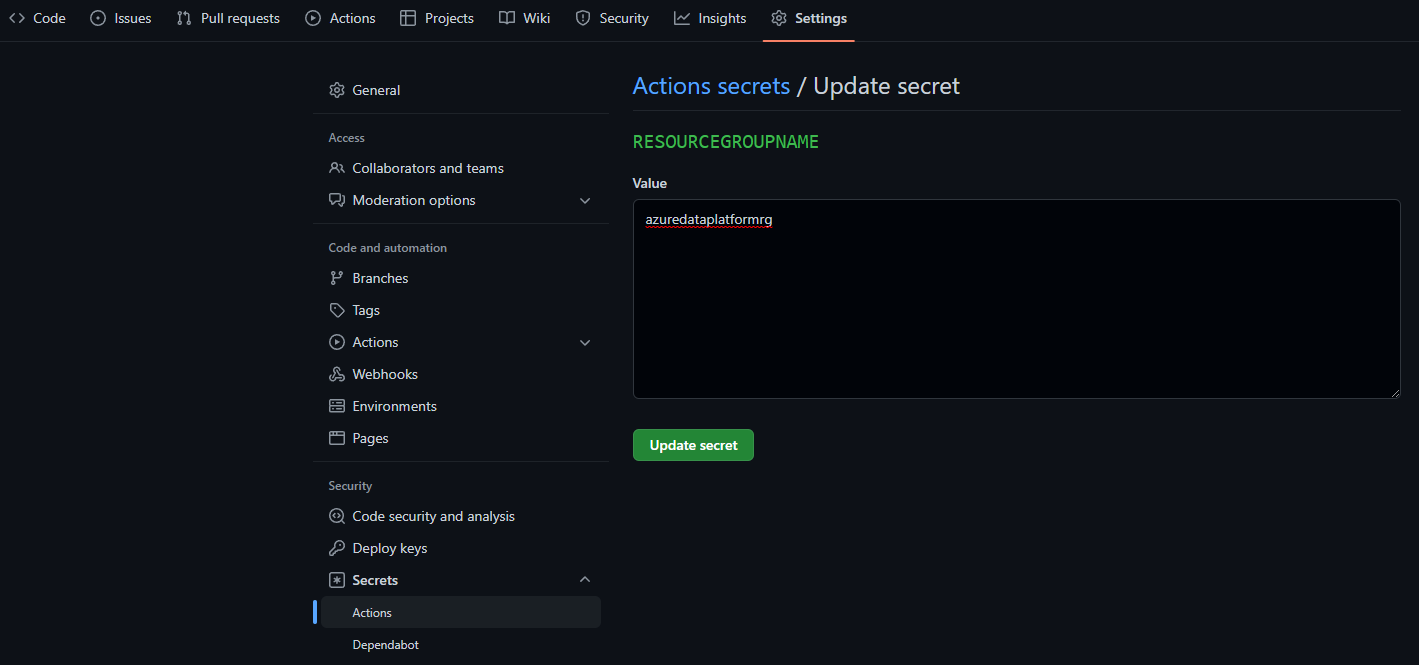
<p>First, add another secret for the name of your resource group</p>

<ul>
  <li>Select <strong>New repository secret</strong> within <em>Settings/Secrets/Actions</em></li>
  <li>Enter the name you want to give your resource group and select <strong>Add secret</strong></li>
</ul>

<blockquote>
  <p><strong>Note:</strong> I recommend to follow the <a href="https://docs.microsoft.com/en-us/azure/cloud-adoption-framework/ready/azure-best-practices/resource-abbreviations">recommended abbreviations for Azure resource types</a>
<strong>I use lowercaps without hyphens as some resources don’t allow it and append the abbreviation as a suffix</strong></p>
</blockquote>

<p><img src="/assets/images/az-deployments0-17.png" alt="picture" /></p>

<h2 id="folder-structure">Folder structure</h2>

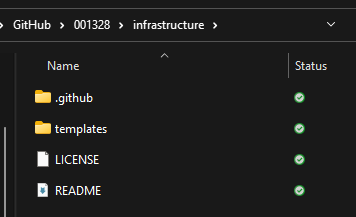
<p>Create 2 Folders in your repository: <strong>.github</strong> and <strong>templates</strong>. 
Within <strong>.github</strong>, create another folder <strong>workflows</strong>.
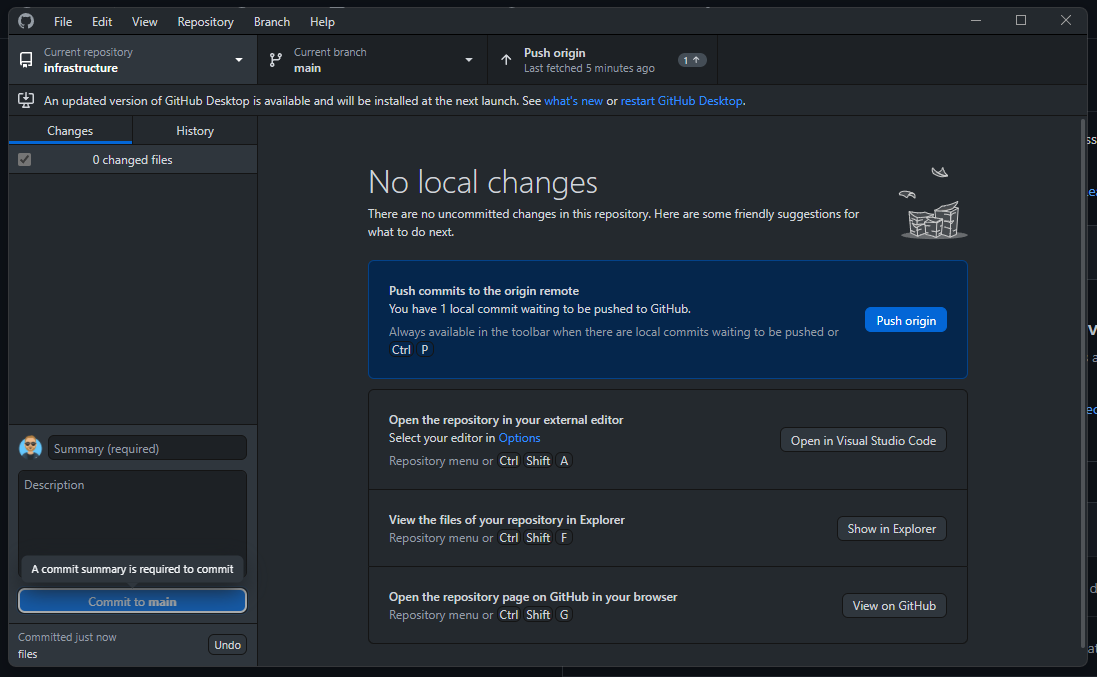
Push all changes to GitHub.</p>

<p><img src="/assets/images/az-deployments0-18.png" alt="picture" /></p>

<ul>
  <li>The Folder <strong>.github</strong> will contain the yaml files which trigger the actual deployments.</li>
  <li>The Folder <strong>templates</strong> will the resource templates.</li>
</ul>

<h2 id="resource-group-template">resource group template</h2>

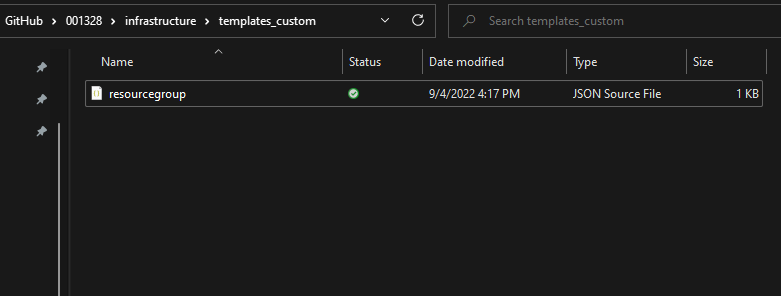
<p>Create a custom template for the resource group deployment by creating a new file in your preferred editor, like <a href="https://code.visualstudio.com/Download">visual studio code</a>. 
Enter the following code and save as <strong>resourcegroup.json</strong> in the folder <strong>templates</strong>.</p>

<blockquote>
  <p><strong>Note:</strong> I recommend to use the location closest to you. For me it is eastus2.
The guys from <a href="https://azuretracks.com/2021/04/current-azure-region-names-reference/">azuretracks</a> have put together a nice list with all the abbreviations.
<a href="https://docs.microsoft.com/en-us/dotnet/api/microsoft.azure.documents.locationnames?view=azure-dotnet">Here</a> is another list.</p>
</blockquote>

<figure class="highlight"><pre><code class="language-json" data-lang="json"><span class="p">{</span><span class="w">
    </span><span class="nl">"$schema"</span><span class="p">:</span><span class="w"> </span><span class="s2">"https://schema.management.azure.com/schemas/2018-05-01/subscriptionDeploymentTemplate.json#"</span><span class="p">,</span><span class="w">
    </span><span class="nl">"contentVersion"</span><span class="p">:</span><span class="w"> </span><span class="s2">"1.0.0.0"</span><span class="p">,</span><span class="w">
    </span><span class="nl">"parameters"</span><span class="p">:</span><span class="w">
    </span><span class="p">{</span><span class="w">
        </span><span class="nl">"ResourceGroupName"</span><span class="p">:</span><span class="w"> </span><span class="p">{</span><span class="w"> </span><span class="nl">"type"</span><span class="p">:</span><span class="w"> </span><span class="s2">"string"</span><span class="w"> </span><span class="p">}</span><span class="w">
    </span><span class="p">},</span><span class="w">
    </span><span class="nl">"resources"</span><span class="p">:</span><span class="w"> </span><span class="p">[</span><span class="w">
        </span><span class="p">{</span><span class="w">
            </span><span class="nl">"type"</span><span class="p">:</span><span class="w"> </span><span class="s2">"Microsoft.Resources/resourceGroups"</span><span class="p">,</span><span class="w">
            </span><span class="nl">"apiVersion"</span><span class="p">:</span><span class="w"> </span><span class="s2">"[providers('Microsoft.Resources','resourceGroups').apiVersions[0]]"</span><span class="p">,</span><span class="w">
            </span><span class="nl">"name"</span><span class="p">:</span><span class="w"> </span><span class="s2">"[parameters('ResourceGroupName')]"</span><span class="p">,</span><span class="w">
            </span><span class="nl">"location"</span><span class="p">:</span><span class="w"> </span><span class="s2">"eastus2"</span><span class="w">
        </span><span class="p">}</span><span class="w">
    </span><span class="p">]</span><span class="w">
</span><span class="p">}</span></code></pre></figure>

<p><img src="/assets/images/az-deployments0-19.png" alt="picture" /></p>

<h2 id="resource-group-workflow">resource group workflow</h2>

<p>Create a new file and paste the following code and save as <strong>resourcegroup.yaml</strong></p>

<blockquote>
  <p>Note: the region is the location of the deployment <strong>within azure</strong>! If you change it after you already deployed the template, you will get an error in the template validation. If so, you need to remove the deployment via the azure shell
$deployments = Get-AzManagementGroupDeployment -ManagementGroupId ES
foreach ($deployment in $deployments) {Remove-AzManagementGroupDeployment -ManagementGroupId ES -Name $deployment.DeploymentName}</p>
</blockquote>

<figure class="highlight"><pre><code class="language-yaml" data-lang="yaml"><span class="na">name</span><span class="pi">:</span> <span class="s">Resource Group Deployment</span>
<span class="na">on</span><span class="pi">:</span> <span class="s">workflow_dispatch</span>
<span class="na">jobs</span><span class="pi">:</span>
 <span class="na">build</span><span class="pi">:</span>
  <span class="na">runs-on</span><span class="pi">:</span> <span class="s">ubuntu-latest</span>
  <span class="na">steps</span><span class="pi">:</span>
   <span class="pi">-</span> <span class="na">uses</span><span class="pi">:</span> <span class="s">actions/checkout@v2</span>

   <span class="pi">-</span> <span class="na">name</span><span class="pi">:</span> <span class="s">Login to Azure</span>
     <span class="na">uses</span><span class="pi">:</span> <span class="s">azure/login@v1.1</span>
     <span class="na">with</span><span class="pi">:</span>
       <span class="na">creds</span><span class="pi">:</span> <span class="s">$</span>

   <span class="pi">-</span> <span class="na">name</span><span class="pi">:</span> <span class="s">Create Resource Group</span>
     <span class="na">uses</span><span class="pi">:</span> <span class="s">azure/arm-deploy@v1</span>
     <span class="na">with</span><span class="pi">:</span>
       <span class="na">scope</span><span class="pi">:</span> <span class="s">subscription</span>
       <span class="na">subscriptionId</span><span class="pi">:</span> <span class="s">$</span>
       <span class="na">region</span><span class="pi">:</span> <span class="s">eastus2</span>
       <span class="na">template</span><span class="pi">:</span> <span class="s">./templates/resourcegroupdeployment.json</span>
       <span class="na">parameters</span><span class="pi">:</span>
         <span class="s">ResourceGroupName=$</span></code></pre></figure>

<h2 id="run-the-workflow">run the workflow</h2>

<ul>
  <li>
    <p>push everything to GitHub
<img src="/assets/images/az-deployments0-20.png" alt="picture" /></p>
  </li>
  <li>
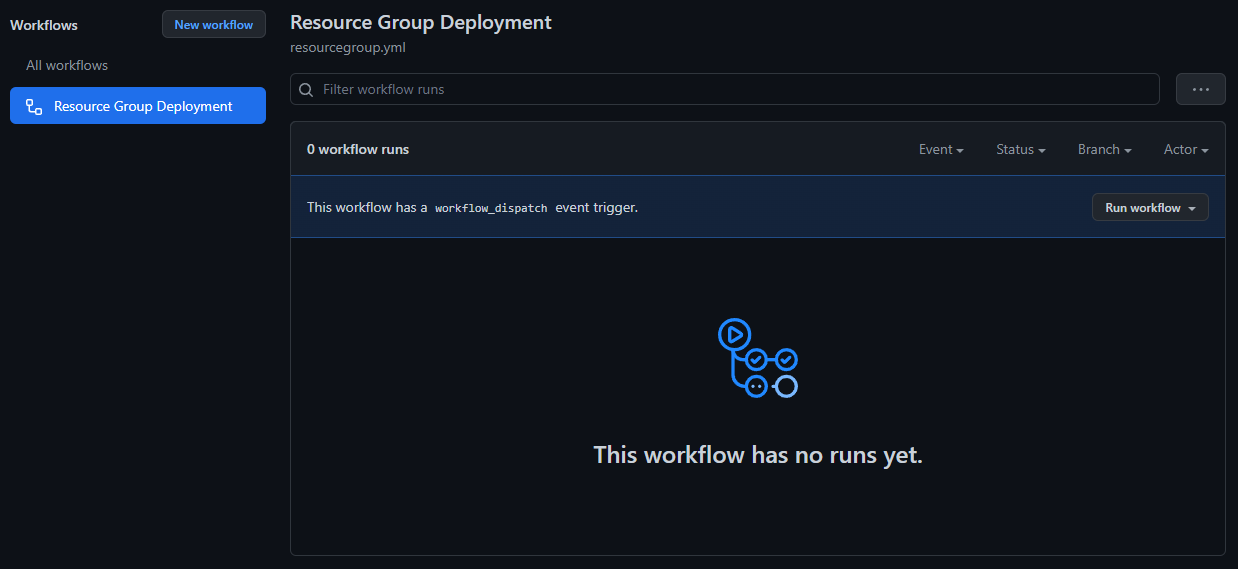
    <p>In GitHub, go to the tab <strong>Actions</strong> and Select the workflow <strong>Resource Group Deployment</strong>
<img src="/assets/images/az-deployments0-21.png" alt="picture" /></p>
  </li>
  <li>
    <p>Select <strong>Run workflow</strong>
<img src="/assets/images/az-deployments0-22.png" alt="picture" /></p>
  </li>
  <li>
    <p>If you select the name of the workflow you can watch the <strong>build</strong>
<img src="/assets/images/az-deployments0-23.png" alt="picture" /></p>
  </li>
  <li>
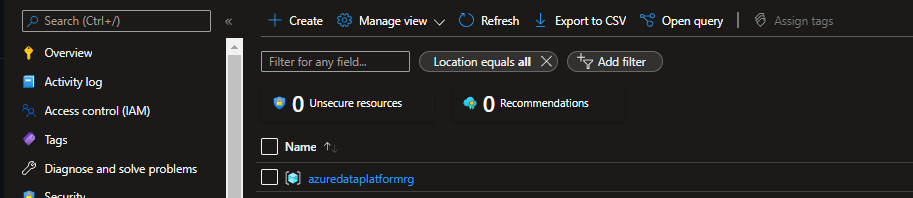
    <p>Once you see a green button you are done and can test if you see your new resource group!
<img src="/assets/images/az-deployments0-24.png" alt="picture" /></p>
  </li>
</ul>]]></content><author><name>Hendrik Kampert</name></author><category term="azure-deployments" /><summary type="html"><![CDATA[In this series azure-deployments we will deploy our infrastructure to azure. The first step is to set up some basics and deploy a resource group.]]></summary></entry><entry><title type="html">GitHub pages 7 | Change the Design</title><link href="https://azuredataplatform.net/blog/GHpages7-changing-the-design/" rel="alternate" type="text/html" title="GitHub pages 7 | Change the Design" /><published>2022-08-06T05:10:00+00:00</published><updated>2022-08-06T05:10:00+00:00</updated><id>https://azuredataplatform.net/blog/GHpages7-changing-the-design</id><content type="html" xml:base="https://azuredataplatform.net/blog/GHpages7-changing-the-design/"><![CDATA[<p>Let’s adjust the design a little so it fits into the brand we want to represent. I don’t need to do a lot here at the moment as I already like the plain look of the default jekyll  theme <em>minima</em>.</p>

<p>My biggest changes are the introduction of a <strong>secondary color</strong> instead of the grey and I want to do something with the <strong>tags</strong></p>

<p>What you need to know is you have _layout and _base for your general styling
and you have the minima.scss for  your variables which are depicted by <strong>$</strong></p>

<p>Now it’s time to think about your <strong>color scheme</strong>.
you need a main color and a secondary color - for me the main color should be dark and the secondary color should be light</p>

<h2 id="basic-adjustments">Basic adjustments</h2>

<p>For the basic adjustments I want to get a primary and secondary color scheme.
Then I want to adjust the current template a little bit so my colors are reflected.</p>

<h2 id="_minimascss">_minima.scss</h2>

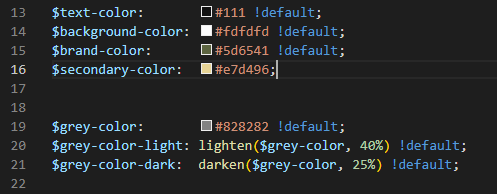
<p>First we go into <em>_sass/minima.scss</em>.
Here, we add a secondary-color variable - play around what color you like.
You cam also changed the brand-color here.</p>

<blockquote>
  <p><strong>simple is key</strong> here and we want to focus on content, a small resemblence to your company leads a long way - this should still be an enterprise-ready wiki</p>
</blockquote>

<p><img src="/assets/images/changing-the-css-1.png" alt="picture" /></p>

<h2 id="_layoutscss">_layout.scss</h2>

<p>Now we can adjust the _layout.scss.
We only really add one thing for post-tag and then adjust the rest a little.</p>

<p>Also adjust the header sizes here.</p>

<p>You will see that the Header sizes are not yet consistent.
You can adjust this within .post-content</p>

<figure class="highlight"><pre><code class="language-scss" data-lang="scss"><span class="nc">.post-content</span> <span class="p">{</span>
  <span class="nl">margin-bottom</span><span class="p">:</span> <span class="nv">$spacing-unit</span><span class="p">;</span>

  <span class="nt">h1</span> <span class="p">{</span>
    <span class="k">@include</span> <span class="nd">relative-font-size</span><span class="p">(</span><span class="m">2</span><span class="p">);</span>

    <span class="k">@include</span> <span class="nd">media-query</span><span class="p">(</span><span class="nv">$on-laptop</span><span class="p">)</span> <span class="p">{</span>
      <span class="k">@include</span> <span class="nd">relative-font-size</span><span class="p">(</span><span class="m">1</span><span class="mi">.75</span><span class="p">);</span>
    <span class="p">}</span>
  <span class="p">}</span>

  <span class="nt">h2</span> <span class="p">{</span>
    <span class="k">@include</span> <span class="nd">relative-font-size</span><span class="p">(</span><span class="m">1</span><span class="mi">.75</span><span class="p">);</span>

    <span class="k">@include</span> <span class="nd">media-query</span><span class="p">(</span><span class="nv">$on-laptop</span><span class="p">)</span> <span class="p">{</span>
      <span class="k">@include</span> <span class="nd">relative-font-size</span><span class="p">(</span><span class="m">1</span><span class="mi">.75</span><span class="p">);</span>
    <span class="p">}</span>
  <span class="p">}</span>

  <span class="nt">h3</span> <span class="p">{</span>
    <span class="k">@include</span> <span class="nd">relative-font-size</span><span class="p">(</span><span class="m">1</span><span class="mi">.5</span><span class="p">);</span>

    <span class="k">@include</span> <span class="nd">media-query</span><span class="p">(</span><span class="nv">$on-laptop</span><span class="p">)</span> <span class="p">{</span>
      <span class="k">@include</span> <span class="nd">relative-font-size</span><span class="p">(</span><span class="m">1</span><span class="mi">.375</span><span class="p">);</span>
    <span class="p">}</span>
  <span class="p">}</span>

  <span class="nt">h4</span> <span class="p">{</span>
    <span class="k">@include</span> <span class="nd">relative-font-size</span><span class="p">(</span><span class="m">1</span><span class="mi">.25</span><span class="p">);</span>

    <span class="k">@include</span> <span class="nd">media-query</span><span class="p">(</span><span class="nv">$on-laptop</span><span class="p">)</span> <span class="p">{</span>
      <span class="k">@include</span> <span class="nd">relative-font-size</span><span class="p">(</span><span class="m">1</span><span class="mi">.125</span><span class="p">);</span>
    <span class="p">}</span>
  <span class="p">}</span>
<span class="p">}</span></code></pre></figure>

<h1 id="tags">Tags</h1>

<p>I kinda like what <a href="https://github.com/codinfox/codinfox-lanyon/blob/dev/_scss/component/_tag.scss">this guy</a> did.</p>

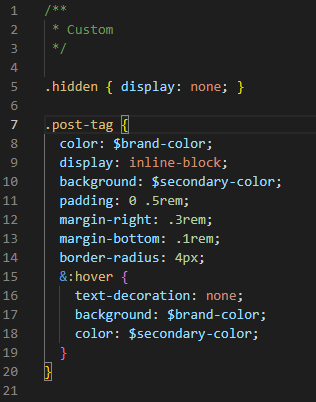
<p>Create a new class “post-tag”  - funny enough is that all the tags already have the class attached to it so we can just use it as a base.
add this code to your <em>Custom</em> segment in your <strong>_layout.scss</strong></p>

<figure class="highlight"><pre><code class="language-scss" data-lang="scss"><span class="nc">.post-tag</span> <span class="p">{</span>
  <span class="nl">color</span><span class="p">:</span> <span class="nv">$brand-color</span><span class="p">;</span>
  <span class="nl">display</span><span class="p">:</span> <span class="n">inline-block</span><span class="p">;</span>
  <span class="nl">background</span><span class="p">:</span> <span class="nv">$secondary-color</span><span class="p">;</span>
  <span class="nl">padding</span><span class="p">:</span> <span class="m">0</span> <span class="mi">.5rem</span><span class="p">;</span>
  <span class="nl">margin-right</span><span class="p">:</span> <span class="mi">.3rem</span><span class="p">;</span>
  <span class="nl">margin-bottom</span><span class="p">:</span> <span class="mi">.1rem</span><span class="p">;</span>
  <span class="nl">border-radius</span><span class="p">:</span> <span class="m">4px</span><span class="p">;</span>
  <span class="k">&amp;</span><span class="nd">:hover</span> <span class="p">{</span>
    <span class="nl">text-decoration</span><span class="p">:</span> <span class="nb">none</span><span class="p">;</span>
    <span class="nl">background</span><span class="p">:</span> <span class="nv">$brand-color</span><span class="p">;</span>
    <span class="nl">color</span><span class="p">:</span> <span class="nv">$secondary-color</span><span class="p">;</span>
  <span class="p">}</span>
<span class="p">}</span></code></pre></figure>

<p><img src="/assets/images/changing-the-css-2.png" alt="picture" /></p>

<h1 id="site-header">Site Header</h1>

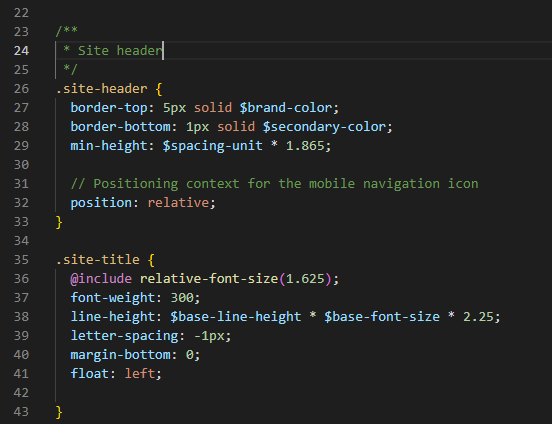
<p>Change the colors on border-top and border-bottom and remove the &amp;:visited.</p>

<figure class="highlight"><pre><code class="language-scss" data-lang="scss"><span class="cm">/**
 * Site header
 */</span>
<span class="nc">.site-header</span> <span class="p">{</span>
  <span class="nl">border-top</span><span class="p">:</span> <span class="m">5px</span> <span class="nb">solid</span> <span class="nv">$brand-color</span><span class="p">;</span>
  <span class="nl">border-bottom</span><span class="p">:</span> <span class="m">1px</span> <span class="nb">solid</span> <span class="nv">$secondary-color</span><span class="p">;</span>
  <span class="nl">min-height</span><span class="p">:</span> <span class="nv">$spacing-unit</span> <span class="o">*</span> <span class="m">1</span><span class="mi">.865</span><span class="p">;</span>

  <span class="c1">// Positioning context for the mobile navigation icon</span>
  <span class="nl">position</span><span class="p">:</span> <span class="nb">relative</span><span class="p">;</span>
<span class="p">}</span>

<span class="nc">.site-title</span> <span class="p">{</span>
  <span class="k">@include</span> <span class="nd">relative-font-size</span><span class="p">(</span><span class="m">1</span><span class="mi">.625</span><span class="p">);</span>
  <span class="nl">font-weight</span><span class="p">:</span> <span class="m">300</span><span class="p">;</span>
  <span class="nl">line-height</span><span class="p">:</span> <span class="nv">$base-line-height</span> <span class="o">*</span> <span class="nv">$base-font-size</span> <span class="o">*</span> <span class="m">2</span><span class="mi">.25</span><span class="p">;</span>
  <span class="nl">letter-spacing</span><span class="p">:</span> <span class="m">-1px</span><span class="p">;</span>
  <span class="nl">margin-bottom</span><span class="p">:</span> <span class="m">0</span><span class="p">;</span>
  <span class="nl">float</span><span class="p">:</span> <span class="nb">left</span><span class="p">;</span>

<span class="p">}</span></code></pre></figure>

<p><img src="/assets/images/changing-the-css-3.png" alt="picture" /></p>

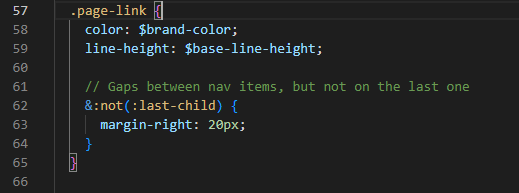
<p>Then I changed the color of the page links to the other pages</p>

<figure class="highlight"><pre><code class="language-scss" data-lang="scss">  <span class="nc">.page-link</span> <span class="p">{</span>
    <span class="nl">color</span><span class="p">:</span> <span class="nv">$brand-color</span><span class="p">;</span>
    <span class="nl">line-height</span><span class="p">:</span> <span class="nv">$base-line-height</span><span class="p">;</span>

    <span class="c1">// Gaps between nav items, but not on the last one</span>
    <span class="k">&amp;</span><span class="nd">:not</span><span class="o">(</span><span class="nd">:last-child</span><span class="o">)</span> <span class="p">{</span>
      <span class="nl">margin-right</span><span class="p">:</span> <span class="m">20px</span><span class="p">;</span>
    <span class="p">}</span>
  <span class="p">}</span></code></pre></figure>

<p><img src="/assets/images/changing-the-css-4.png" alt="picture" /></p>

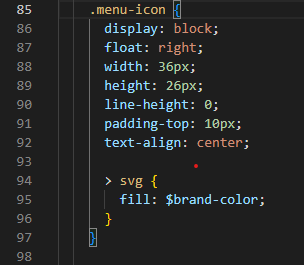
<p>I also changed the menu icon (is showed if you narrow your screen)</p>

<figure class="highlight"><pre><code class="language-scss" data-lang="scss">    <span class="nc">.menu-icon</span> <span class="p">{</span>
      <span class="nl">display</span><span class="p">:</span> <span class="nb">block</span><span class="p">;</span>
      <span class="nl">float</span><span class="p">:</span> <span class="nb">right</span><span class="p">;</span>
      <span class="nl">width</span><span class="p">:</span> <span class="m">36px</span><span class="p">;</span>
      <span class="nl">height</span><span class="p">:</span> <span class="m">26px</span><span class="p">;</span>
      <span class="nl">line-height</span><span class="p">:</span> <span class="m">0</span><span class="p">;</span>
      <span class="nl">padding-top</span><span class="p">:</span> <span class="m">10px</span><span class="p">;</span>
      <span class="nl">text-align</span><span class="p">:</span> <span class="nb">center</span><span class="p">;</span>

      <span class="o">&gt;</span> <span class="nt">svg</span> <span class="p">{</span>
        <span class="na">fill</span><span class="p">:</span> <span class="nv">$brand-color</span><span class="p">;</span>
      <span class="p">}</span>
    <span class="p">}</span></code></pre></figure>

<p><img src="/assets/images/changing-the-css-5.png" alt="picture" /></p>

<h1 id="site-footer">Site footer</h1>

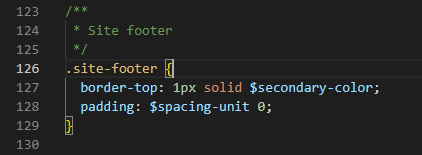
<p>Change the color of the border to your secondary color and adjust the wrapper of your footer</p>

<figure class="highlight"><pre><code class="language-scss" data-lang="scss"><span class="cm">/**
 * Site footer
 */</span>
<span class="nc">.site-footer</span> <span class="p">{</span>
  <span class="nl">border-top</span><span class="p">:</span> <span class="m">1px</span> <span class="nb">solid</span> <span class="nv">$secondary-color</span><span class="p">;</span>
  <span class="nl">padding</span><span class="p">:</span> <span class="nv">$spacing-unit</span> <span class="m">0</span><span class="p">;</span>
<span class="p">}</span></code></pre></figure>

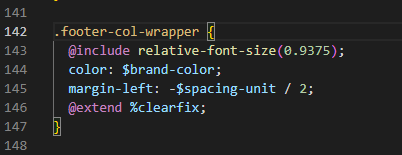
<p><img src="/assets/images/changing-the-css-6.png" alt="picture" /></p>

<figure class="highlight"><pre><code class="language-scss" data-lang="scss"><span class="nc">.footer-col-wrapper</span> <span class="p">{</span>
  <span class="k">@include</span> <span class="nd">relative-font-size</span><span class="p">(</span><span class="m">0</span><span class="mi">.9375</span><span class="p">);</span>
  <span class="nl">color</span><span class="p">:</span> <span class="nv">$brand-color</span><span class="p">;</span>
  <span class="nl">margin-left</span><span class="p">:</span> <span class="o">-</span><span class="nv">$spacing-unit</span> <span class="o">/</span> <span class="m">2</span><span class="p">;</span>
  <span class="k">@extend</span> <span class="nv">%clearfix</span><span class="p">;</span>
<span class="p">}</span></code></pre></figure>

<p><img src="/assets/images/changing-the-css-7.png" alt="picture" /></p>

<h1 id="page-content">Page content</h1>

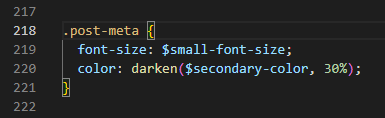
<p>Here we just adjust the meta information for each post.</p>
<blockquote>
  <p>Note: Depending on you secondary color you need to make it darker or lighter so it is good to read.</p>
</blockquote>

<figure class="highlight"><pre><code class="language-scss" data-lang="scss"><span class="nc">.post-meta</span> <span class="p">{</span>
  <span class="nl">font-size</span><span class="p">:</span> <span class="nv">$small-font-size</span><span class="p">;</span>
  <span class="nl">color</span><span class="p">:</span> <span class="nf">darken</span><span class="p">(</span><span class="nv">$secondary-color</span><span class="o">,</span> <span class="m">30%</span><span class="p">);</span>
<span class="p">}</span></code></pre></figure>

<p><img src="/assets/images/changing-the-css-8.png" alt="picture" /></p>

<h2 id="_basescss">_base.scss</h2>
<p>We can adjust the images, links and icons in <em>_sass/minima/_base.scss</em></p>

<h1 id="images">Images</h1>

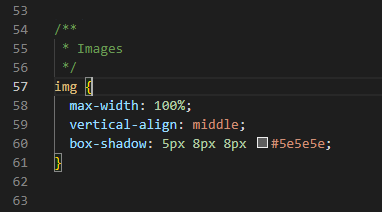
<p>For images I want to add a shadow to make them pop a little.</p>

<figure class="highlight"><pre><code class="language-scss" data-lang="scss"><span class="cm">/**
 * Images
 */</span>
<span class="nt">img</span> <span class="p">{</span>
  <span class="nl">max-width</span><span class="p">:</span> <span class="m">100%</span><span class="p">;</span>
  <span class="nl">vertical-align</span><span class="p">:</span> <span class="nb">middle</span><span class="p">;</span>
  <span class="nl">box-shadow</span><span class="p">:</span> <span class="m">5px</span> <span class="m">8px</span> <span class="m">8px</span> <span class="mh">#5e5e5e</span><span class="p">;</span>
<span class="p">}</span></code></pre></figure>

<p><img src="/assets/images/changing-the-css-8b.png" alt="picture" /></p>

<p>If you want to change the shadow to a <em>“glowy”</em> style you can als try this.</p>

<figure class="highlight"><pre><code class="language-scss" data-lang="scss"><span class="nl">box-shadow</span><span class="p">:</span> <span class="m">0px</span> <span class="m">0px</span> <span class="m">11px</span> <span class="mh">#000000</span><span class="p">;</span></code></pre></figure>

<h1 id="links">Links</h1>

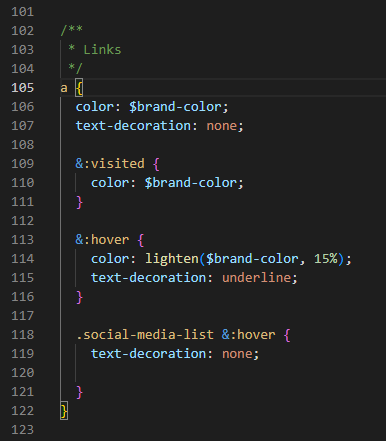
<p>For the links I just removed the <em>visited</em> because I always find it irritating when websites have different colors for links.
Other changes are colors and the underline for the social media links</p>

<figure class="highlight"><pre><code class="language-scss" data-lang="scss"><span class="cm">/**
 * Links
 */</span>
<span class="nt">a</span> <span class="p">{</span>
  <span class="nl">color</span><span class="p">:</span> <span class="nv">$brand-color</span><span class="p">;</span>
  <span class="nl">text-decoration</span><span class="p">:</span> <span class="nb">none</span><span class="p">;</span>

  <span class="k">&amp;</span><span class="nd">:visited</span> <span class="p">{</span>
    <span class="nl">color</span><span class="p">:</span> <span class="nv">$brand-color</span><span class="p">;</span>
  <span class="p">}</span>

  <span class="k">&amp;</span><span class="nd">:hover</span> <span class="p">{</span>
    <span class="nl">color</span><span class="p">:</span> <span class="nf">lighten</span><span class="p">(</span><span class="nv">$brand-color</span><span class="o">,</span> <span class="m">15%</span><span class="p">);</span>
    <span class="nl">text-decoration</span><span class="p">:</span> <span class="nb">underline</span><span class="p">;</span>
  <span class="p">}</span>

  <span class="nc">.social-media-list</span> <span class="k">&amp;</span><span class="nd">:hover</span> <span class="p">{</span>
    <span class="nl">text-decoration</span><span class="p">:</span> <span class="nb">none</span><span class="p">;</span>

  <span class="p">}</span>
<span class="p">}</span></code></pre></figure>

<p><img src="/assets/images/changing-the-css-9.png" alt="picture" /></p>

<h1 id="icons">Icons</h1>

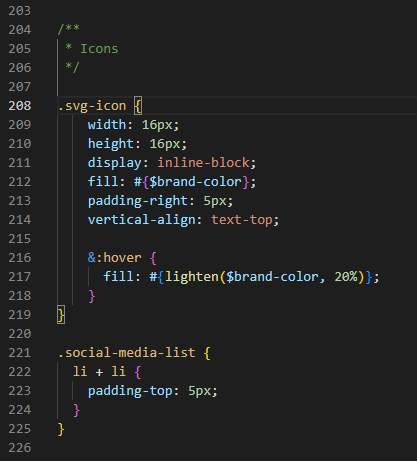
<p>change the icon fill to your brand color</p>

<figure class="highlight"><pre><code class="language-scss" data-lang="scss"><span class="cm">/**
 * Icons
 */</span>

<span class="nc">.svg-icon</span> <span class="p">{</span>
    <span class="nl">width</span><span class="p">:</span> <span class="m">16px</span><span class="p">;</span>
    <span class="nl">height</span><span class="p">:</span> <span class="m">16px</span><span class="p">;</span>
    <span class="nl">display</span><span class="p">:</span> <span class="n">inline-block</span><span class="p">;</span>
    <span class="na">fill</span><span class="p">:</span> <span class="si">#{</span><span class="nv">$brand-color</span><span class="si">}</span><span class="p">;</span>
    <span class="nl">padding-right</span><span class="p">:</span> <span class="m">5px</span><span class="p">;</span>
    <span class="nl">vertical-align</span><span class="p">:</span> <span class="nb">text-top</span><span class="p">;</span>

    <span class="k">&amp;</span><span class="nd">:hover</span> <span class="p">{</span>
      <span class="na">fill</span><span class="p">:</span> <span class="si">#{</span><span class="nf">lighten</span><span class="p">(</span><span class="nv">$brand-color</span><span class="o">,</span> <span class="m">20%</span><span class="p">)</span><span class="si">}</span><span class="p">;</span>
    <span class="p">}</span>
<span class="p">}</span></code></pre></figure>

<p><img src="/assets/images/changing-the-css-10.png" alt="picture" /></p>

<h2 id="done">DONE</h2>]]></content><author><name>Hendrik Kampert</name></author><category term="github-pages" /><summary type="html"><![CDATA[Let’s adjust the design a little so it fits into the brand we want to represent. I don’t need to do a lot here at the moment as I already like the plain look of the default jekyll theme minima.]]></summary></entry><entry><title type="html">GitHub pages 6 | Add navigation tags</title><link href="https://azuredataplatform.net/blog/GHpages6-add-tags/" rel="alternate" type="text/html" title="GitHub pages 6 | Add navigation tags" /><published>2022-07-29T05:10:00+00:00</published><updated>2022-07-29T05:10:00+00:00</updated><id>https://azuredataplatform.net/blog/GHpages6-add-tags</id><content type="html" xml:base="https://azuredataplatform.net/blog/GHpages6-add-tags/"><![CDATA[<p>Let’s add some navigation.
I’ve found two ways to add navigation to your side.</p>

<p>One way to do this is to simply add additional pages, then add a navigation menu and hardcode everything. While this probably works I just hate hard-coded stuff and don’t think anyone should waste time and effort with keeping code alive if there is not a really good reason to do so.</p>

<p>Lucky for us Jekyll offers another way to do navigation with its “built-in plugin” called jekyll-archives.
Unlucky for us GitHub pages does not support jekyll-archives..</p>

<p>But <a href="http://codinfox.github.io/dev/2015/03/06/use-tags-and-categories-in-your-jekyll-based-github-pages/">this guy here</a> (Big time Kudos!) found a pretty cool solution which I used as a base and customized a little bit..(due to my complete lack of html skills it took me a couple of days but if I can do it, you can too!)</p>

<p>Actually, I had to invest quite some work because I didn’t just want a list with all posts, but <strong>I wanted my list to actually filter</strong> when I click a tag!</p>

<blockquote>
  <p><strong>Important note:</strong> Jekyll is <strong>static</strong> and gets executed when the page is loaded. To get the interaction we need to add some <strong>Javascript</strong> and filter out the posts we don’t want to see upon a click.</p>
</blockquote>

<h2 id="solution">Solution</h2>

<p>Most of the changes will be in your home.html</p>

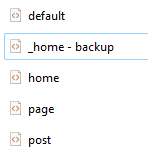
<p>Go to your folder <em>_layouts</em> and open your <em>home.html</em>.
This is what we will change first - if you want you can copy it for your references so you can always go back (without going through your version control).</p>

<p><img src="/assets/images/adding-tags-1.png" alt="picture" /></p>

<h1 id="step-1-create-a-list-of-tags">Step 1: create a list of tags</h1>

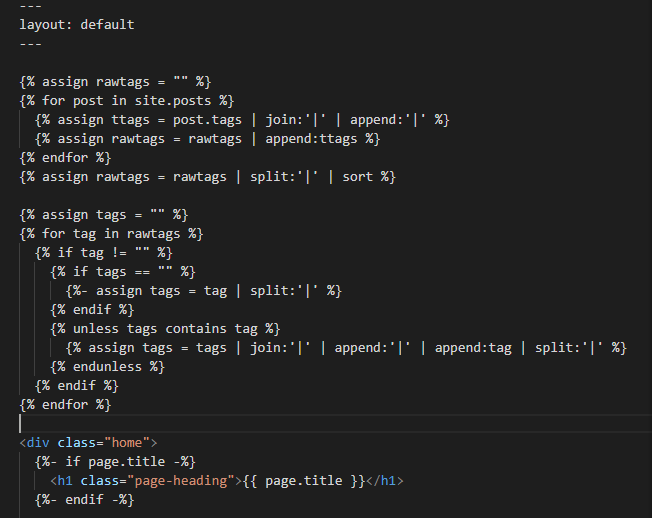
<p>First you add the following code at the top of the <em>home.html</em> to extract all the tags, sort them and remove duplicated ones.</p>

<figure class="highlight"><pre><code class="language-liquid" data-lang="liquid"><span class="p">{%</span><span class="w"> </span><span class="nt">assign</span><span class="w"> </span><span class="nv">rawtags</span><span class="w"> </span><span class="o">=</span><span class="w"> </span><span class="s2">""</span><span class="w"> </span><span class="p">%}</span>
<span class="p">{%</span><span class="w"> </span><span class="nt">for</span><span class="w"> </span><span class="nv">post</span><span class="w"> </span><span class="nt">in</span><span class="w"> </span><span class="nv">site.posts</span><span class="w"> </span><span class="p">%}</span>
	<span class="p">{%</span><span class="w"> </span><span class="nt">assign</span><span class="w"> </span><span class="nv">ttags</span><span class="w"> </span><span class="o">=</span><span class="w"> </span><span class="nv">post</span><span class="p">.</span><span class="nv">tags</span><span class="w"> </span><span class="p">|</span><span class="w"> </span><span class="nf">join</span><span class="p">:</span><span class="s1">'|'</span><span class="w"> </span><span class="p">|</span><span class="w"> </span><span class="nf">append</span><span class="p">:</span><span class="s1">'|'</span><span class="w"> </span><span class="p">%}</span>
	<span class="p">{%</span><span class="w"> </span><span class="nt">assign</span><span class="w"> </span><span class="nv">rawtags</span><span class="w"> </span><span class="o">=</span><span class="w"> </span><span class="nv">rawtags</span><span class="w"> </span><span class="p">|</span><span class="w"> </span><span class="nf">append</span><span class="p">:</span><span class="nv">ttags</span><span class="w"> </span><span class="p">%}</span>
<span class="p">{%</span><span class="w"> </span><span class="nt">endfor</span><span class="w"> </span><span class="p">%}</span>
<span class="p">{%</span><span class="w"> </span><span class="nt">assign</span><span class="w"> </span><span class="nv">rawtags</span><span class="w"> </span><span class="o">=</span><span class="w"> </span><span class="nv">rawtags</span><span class="w"> </span><span class="p">|</span><span class="w"> </span><span class="nf">split</span><span class="p">:</span><span class="s1">'|'</span><span class="w"> </span><span class="p">|</span><span class="w"> </span><span class="nf">sort</span><span class="w"> </span><span class="p">%}</span>

<span class="p">{%</span><span class="w"> </span><span class="nt">assign</span><span class="w"> </span><span class="nv">tags</span><span class="w"> </span><span class="o">=</span><span class="w"> </span><span class="s2">""</span><span class="w"> </span><span class="p">%}</span>
<span class="p">{%</span><span class="w"> </span><span class="nt">for</span><span class="w"> </span><span class="nv">tag</span><span class="w"> </span><span class="nt">in</span><span class="w"> </span><span class="nv">rawtags</span><span class="w"> </span><span class="p">%}</span>
	<span class="p">{%</span><span class="w"> </span><span class="kr">if</span><span class="w"> </span><span class="nv">tag</span><span class="w"> </span><span class="o">!=</span><span class="w"> </span><span class="s2">""</span><span class="w"> </span><span class="p">%}</span>
		<span class="p">{%</span><span class="w"> </span><span class="kr">if</span><span class="w"> </span><span class="nv">tags</span><span class="w"> </span><span class="o">==</span><span class="w"> </span><span class="s2">""</span><span class="w"> </span><span class="p">%}</span>
			<span class="p">{%</span><span class="w"> </span><span class="nt">assign</span><span class="w"> </span><span class="nv">tags</span><span class="w"> </span><span class="o">=</span><span class="w"> </span><span class="nv">tag</span><span class="w"> </span><span class="p">|</span><span class="w"> </span><span class="nf">split</span><span class="p">:</span><span class="s1">'|'</span><span class="w"> </span><span class="p">%}</span>
		<span class="p">{%</span><span class="w"> </span><span class="kr">endif</span><span class="w"> </span><span class="p">%}</span>
		<span class="p">{%</span><span class="w"> </span><span class="kr">unless</span><span class="w"> </span><span class="nv">tags</span><span class="w"> </span><span class="ow">contains</span><span class="w"> </span><span class="nv">tag</span><span class="w"> </span><span class="p">%}</span>
			<span class="p">{%</span><span class="w"> </span><span class="nt">assign</span><span class="w"> </span><span class="nv">tags</span><span class="w"> </span><span class="o">=</span><span class="w"> </span><span class="nv">tags</span><span class="w"> </span><span class="p">|</span><span class="w"> </span><span class="nf">join</span><span class="p">:</span><span class="s1">'|'</span><span class="w"> </span><span class="p">|</span><span class="w"> </span><span class="nf">append</span><span class="p">:</span><span class="s1">'|'</span><span class="w"> </span><span class="p">|</span><span class="w"> </span><span class="nf">append</span><span class="p">:</span><span class="nv">tag</span><span class="w"> </span><span class="p">|</span><span class="w"> </span><span class="nf">split</span><span class="p">:</span><span class="s1">'|'</span><span class="w"> </span><span class="p">%}</span>
		<span class="p">{%</span><span class="w"> </span><span class="kr">endunless</span><span class="w"> </span><span class="p">%}</span>
	<span class="p">{%</span><span class="w"> </span><span class="kr">endif</span><span class="w"> </span><span class="p">%}</span>
<span class="p">{%</span><span class="w"> </span><span class="nt">endfor</span><span class="w"> </span><span class="p">%}</span></code></pre></figure>

<p><img src="/assets/images/adding-tags-2.png" alt="picture" /></p>

<h1 id="step-2-add-the-tags-to-the-site">Step 2: add the tags to the site</h1>

<p>Then add the list of tags as an element above the post-list header element in line 32. This code adds each tag as a hyperlink and executes the function <em>click_the_tag</em> with the id of the tag that we clicked.</p>

<figure class="highlight"><pre><code class="language-liquid" data-lang="liquid"><span class="p">{%</span><span class="w"> </span><span class="nt">for</span><span class="w"> </span><span class="nv">tag</span><span class="w"> </span><span class="nt">in</span><span class="w"> </span><span class="nv">tags</span><span class="w"> </span><span class="p">%}</span>    
&lt;a id=<span class="p">{{</span><span class="nv">tag</span><span class="p">}}</span> class="post-tag" href="#<span class="p">{{</span><span class="w"> </span><span class="nv">tag</span><span class="w"> </span><span class="p">|</span><span class="w"> </span><span class="nf">slugify</span><span class="w"> </span><span class="p">}}</span>" onclick="click_the_tag(this.id)"&gt; #<span class="p">{{</span><span class="w"> </span><span class="nv">tag</span><span class="w"> </span><span class="p">}}</span> &lt;/a&gt;
<span class="p">{%</span><span class="w"> </span><span class="nt">endfor</span><span class="w"> </span><span class="p">%}</span></code></pre></figure>

<p>I also added a tag #all at the beginning of the tag list to show all posts again.
To do this we can simply add the following code above</p>

<figure class="highlight"><pre><code class="language-html" data-lang="html"><span class="nt">&lt;a</span> <span class="na">class=</span><span class="s">"post-tag"</span> <span class="na">href=</span><span class="s">""</span><span class="nt">&gt;</span>#all<span class="nt">&lt;/a&gt;</span></code></pre></figure>

<p><img src="/assets/images/adding-tags-3.png" alt="picture" /></p>

<h1 id="step-3-create-the-base-function">Step 3: create the base function</h1>

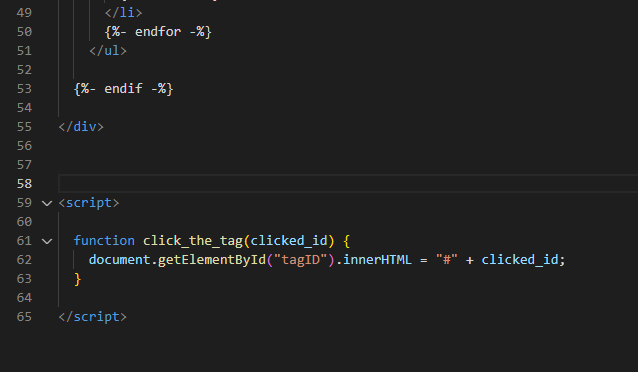
<p>Now we are ready to add the frame of our javascript function. The frame will just select the clicked tag and change the element named <em>tagID</em> to this tag.</p>

<figure class="highlight"><pre><code class="language-html" data-lang="html"><span class="nt">&lt;script&gt;</span>

  <span class="kd">function</span> <span class="nx">click_the_tag</span><span class="p">(</span><span class="nx">clicked_id</span><span class="p">)</span> <span class="p">{</span>
    <span class="nb">document</span><span class="p">.</span><span class="nx">getElementById</span><span class="p">(</span><span class="dl">"</span><span class="s2">tagID</span><span class="dl">"</span><span class="p">).</span><span class="nx">innerHTML</span> <span class="o">=</span> <span class="dl">"</span><span class="s2">#</span><span class="dl">"</span> <span class="o">+</span> <span class="nx">clicked_id</span><span class="p">;</span>
  <span class="p">}</span>

<span class="nt">&lt;/script&gt;</span></code></pre></figure>

<p><img src="/assets/images/adding-tags-5.png" alt="picture" /></p>

<p>To immediately test the function we also adjust the html a little.</p>

<figure class="highlight"><pre><code class="language-html" data-lang="html"><span class="nt">&lt;h2</span> <span class="na">class=</span><span class="s">"post-list-heading"</span><span class="nt">&gt;</span>{{ page.list_title | default: "Posts" }}<span class="nt">&lt;/h2&gt;</span></code></pre></figure>

<p>Replace the code above with the code below.</p>

<figure class="highlight"><pre><code class="language-html" data-lang="html"><span class="nt">&lt;h2</span> <span class="na">class=</span><span class="s">"post-list-heading"</span><span class="nt">&gt;&lt;span</span> <span class="na">id=</span><span class="s">"tagID"</span><span class="nt">&gt;</span>#all<span class="nt">&lt;/span&gt;</span> posts<span class="nt">&lt;/h2&gt;</span></code></pre></figure>

<p>It should look like this now:</p>

<p><img src="/assets/images/adding-tags-4.png" alt="picture" /></p>

<blockquote>
  <p><strong>Test it</strong> and see how it changes based on what you click. Your url changes too, so you can easily see what was clicked.</p>
</blockquote>

<h1 id="step-4-add-the-logic-to-the-function">Step 4: add the logic to the function</h1>

<p>Now you can add the rest of the function. 
First we create an object that stores all posts with the class <em>“post-elements”</em>, then it iterates through them and adds a class <em>“hidden”</em>.
Then we do the same for the posts with the class that we selected, iterate through them and remove the class <em>“hidden”</em> again.</p>

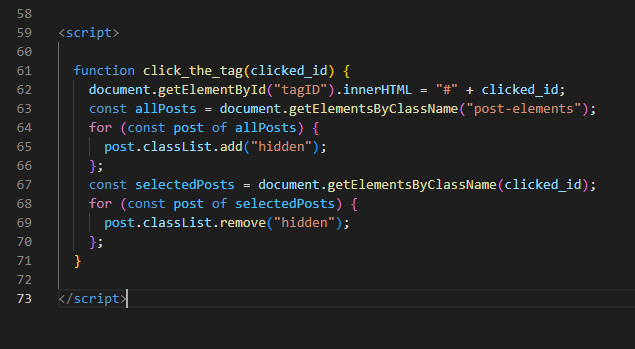
<figure class="highlight"><pre><code class="language-html" data-lang="html">const allPosts = document.getElementsByClassName("post-elements");
for (const post of allPosts) {
	post.classList.add("hidden");
};
const selectedPosts = document.getElementsByClassName(clicked_id);
for (const post of selectedPosts) {
	post.classList.remove("hidden");
};</code></pre></figure>

<p><img src="/assets/images/adding-tags-6.png" alt="picture" /></p>

<blockquote>
  <p>remember: the whole page is rendered already so we actually just need to hide some unwanted elements</p>
</blockquote>

<h1 id="step-5-add-a-class-to-your-css">Step 5: add a class to your CSS</h1>

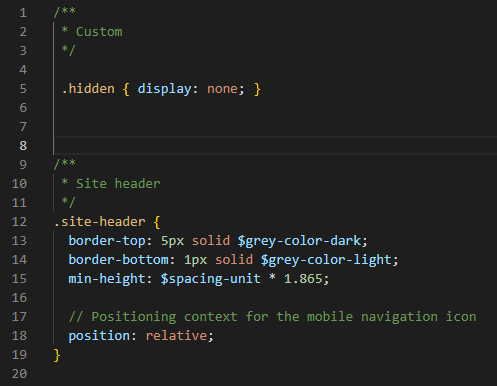
<p>Now we go to your folder <strong>_sass/minima</strong> and add a class named <strong>hidden</strong> to the file <strong>_layout.html</strong>.</p>

<p>Add a new segment at the top for <em>Custom</em>.</p>

<figure class="highlight"><pre><code class="language-sass" data-lang="sass"><span class="cm">/**
</span> <span class="cm">* Custom
</span> <span class="cm">*/
</span>
<span class="err">.</span><span class="na">hidden</span><span class="err"> { </span><span class="nl">display</span><span class="p">:</span> <span class="nb">none</span><span class="err">;</span> <span class="err">}</span></code></pre></figure>

<p><img src="/assets/images/adding-tags-7.png" alt="picture" /></p>

<h1 id="step-6-add-the-new-class-to-your-elements">Step 6: add the new class to your elements</h1>

<p>Now we add the class <em>post-elements</em> to each element that links to a post in <em>home.html</em>.
We also add a class for each tag a post has with the same name. This will then be used by the function to identify where to remove the class <em>“hidden”</em>.</p>

<figure class="highlight"><pre><code class="language-html" data-lang="html">      {% assign joinedtags = post.tags | join:" " %}
      <span class="nt">&lt;li</span> <span class="na">class=</span><span class="s">"post-elements {{ joinedtags }}"</span><span class="nt">&gt;</span></code></pre></figure>

<p><img src="/assets/images/adding-tags-8.png" alt="picture" /></p>

<blockquote>
  <p><strong>Test it</strong> and see how the list changes..</p>
</blockquote>

<h1 id="step-7-add-the-tags-to-each-post-in-the-list">Step 7: add the tags to each post in the list</h1>

<p>Last thing is to add the tags meta information to each post link in the list.
Just add the following span element which sorts, joins and adds each tag for the respective post.</p>

<figure class="highlight"><pre><code class="language-liquid" data-lang="liquid">&lt;span class="post-meta"&gt; <span class="p">{{</span><span class="nv">post</span><span class="p">.</span><span class="nv">tags</span><span class="w"> </span><span class="p">|</span><span class="w"> </span><span class="nf">sort</span><span class="w"> </span><span class="p">|</span><span class="w"> </span><span class="nf">join</span><span class="p">:</span><span class="s2">" #"</span><span class="w"> </span><span class="p">|</span><span class="w"> </span><span class="nf">prepend</span><span class="p">:</span><span class="w"> </span><span class="s2">"| #"</span><span class="p">}}</span>&lt;/span&gt;</code></pre></figure>

<p><img src="/assets/images/adding-tags-9.png" alt="picture" /></p>

<h1 id="step-8-add-the-tags-to-each-post-site">Step 8: add the tags to each post site</h1>

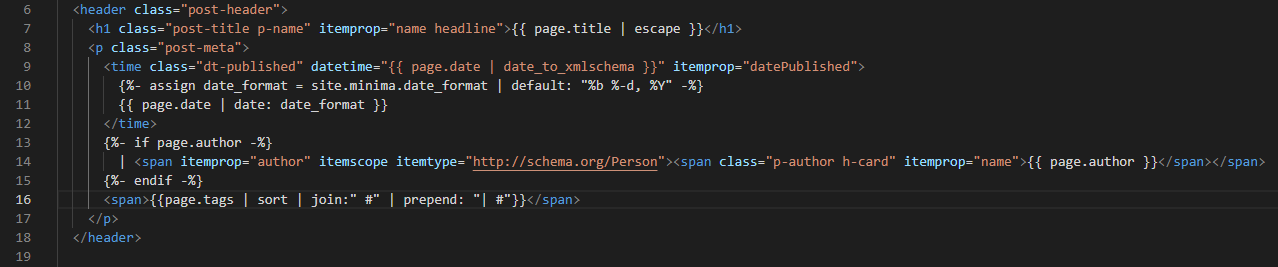
<p>Last step is to also add the information above in every post.
Go to <em>_layouts/post.html</em> and insert the following code at the end of the <em>p-element</em> with the class <em>post-meta</em>.</p>
<blockquote>
  <p>Note how we use <em>page.tags</em> now instead of <em>post.tags</em></p>
</blockquote>

<figure class="highlight"><pre><code class="language-liquid" data-lang="liquid">&lt;span&gt;<span class="p">{{</span><span class="nv">page</span><span class="p">.</span><span class="nv">tags</span><span class="w"> </span><span class="p">|</span><span class="w"> </span><span class="nf">sort</span><span class="w"> </span><span class="p">|</span><span class="w"> </span><span class="nf">join</span><span class="p">:</span><span class="s2">" #"</span><span class="w"> </span><span class="p">|</span><span class="w"> </span><span class="nf">prepend</span><span class="p">:</span><span class="w"> </span><span class="s2">"| #"</span><span class="p">}}</span>&lt;/span&gt;</code></pre></figure>

<p>Also, I changed the first part of th author-element to get rid of the bullet point.</p>

<figure class="highlight"><pre><code class="language-liquid" data-lang="liquid">| &lt;span itemprop="author" itemscope itemtype="http://schema.org/Person"&gt;&lt;span class="p-author h-card" itemprop="name"&gt;<span class="p">{{</span><span class="w"> </span><span class="nv">page</span><span class="p">.</span><span class="nv">author</span><span class="w"> </span><span class="p">}}</span>&lt;/span&gt;&lt;/span&gt;</code></pre></figure>

<p><img src="/assets/images/adding-tags-10.png" alt="picture" /></p>

<h2 id="references">References</h2>

<p><a href="https://stackoverflow.com/questions/4825295/onclick-to-get-the-id-of-the-clicked-button">Here</a> I learned how to get the ID from a clicked tag so you can filter down the posts.</p>

<p>The display property stuff comes form <a href="https://bobbyhadz.com/blog/javascript-hide-element-by-class#:~:text=To%20hide%20an%20element%20by%20a%20class%3A%20Use,to%20get%20the%20element%20you%20want%20to%20hide.">here</a></p>

<h1 id="more-references-for-jekyll-archives">More References for Jekyll archives</h1>

<p><a href="https://aneejian.com/automated-jekyll-archives-github-pages/">This guy</a> shows a way to deploy the archives plugin on GitHub pages. This could actually work but I think it is way to much effort and a lot harder to implement than my solution.</p>

<p>You can check out how to work with Jekyll archives in general <a href="https://github.com/jekyll/jekyll-archives">here</a> and <a href="https://learn.cloudcannon.com/jekyll/jekyll-archives/">here</a> if you want to deploy it to your own webserver.</p>]]></content><author><name>Hendrik Kampert</name></author><category term="github-pages" /><summary type="html"><![CDATA[Let’s add some navigation. I’ve found two ways to add navigation to your side.]]></summary></entry><entry><title type="html">GitHub pages 5 | Create content</title><link href="https://azuredataplatform.net/blog/GHpages5-create-content/" rel="alternate" type="text/html" title="GitHub pages 5 | Create content" /><published>2022-07-28T05:10:00+00:00</published><updated>2022-07-28T05:10:00+00:00</updated><id>https://azuredataplatform.net/blog/GHpages5-create-content</id><content type="html" xml:base="https://azuredataplatform.net/blog/GHpages5-create-content/"><![CDATA[<p>now let’s create some content in markdown</p>

<p>We will cover these things here:</p>

<ol>
  <li>how to create additional pages</li>
  <li>how to create posts</li>
  <li>markdown basics</li>
</ol>

<h2 id="pages">Pages</h2>

<p>You can add more pages to the navigation on top by add more markdown files in the folder <em>_pages</em>.
Every page just needs these elements at the beginning of they page.</p>

<div class="language-plaintext highlighter-rouge"><div class="highlight"><pre class="highlight"><code>---
layout: page
title: About
permalink: /about/
---
</code></pre></div></div>

<p>If you want to adjust the <strong>layout</strong>, just go to _layouts, create the layout (html) you like and you can use it at the beginning of the page.
The title adjusts the Header on the page and the link.
The <strong>permalink</strong> is the actual link you can use for navigation.</p>

<p><img src="/assets/images/website_content1.png" alt="picture" /></p>

<p>To not overload the page I just added 2 more pages, <strong>about</strong> and <strong>credits</strong></p>

<h2 id="posts">Posts</h2>

<p>To add a post you can just create a new markdown file in the folder <strong>_posts</strong>.
Please follow this naming convention: yyyy-mm-dd-enter-your-text</p>

<p><img src="/assets/images/website_content2.png" alt="picture" /></p>

<p>Reason is that jekyll automatically creates a URL structure and will not detect any files not in this format.
Posts that are not ready to publish yet can be put into the folder <strong>_drafts</strong>.
This provides better organization and also gives you the option to test your result by running jekyll locally with this option:</p>

<div class="language-plaintext highlighter-rouge"><div class="highlight"><pre class="highlight"><code>bundle exec jekyll serve --drafts
</code></pre></div></div>

<p>Each post has a header, <strong>layout</strong> is <em>post</em>, <strong>title</strong> is whatever you want to see, the <strong>date</strong> sorts your posts and <strong>categories</strong> structures your URL and provides Filter capabilities.
<strong>Categories</strong> is one of two standard features the vanilla jekyll framework minima provides. The other one is <strong>Tags</strong> which I personally find a little more intuitive and will use for adding navigation to my page (see next posts).</p>

<div class="language-plaintext highlighter-rouge"><div class="highlight"><pre class="highlight"><code>---
layout: post
title:  "Creating content"
date:   2022-07-28 01:10:00 -0400
categories: jekyll update
tags: github-pages
---
</code></pre></div></div>

<h2 id="markdown-basics">Markdown basics</h2>

<h1 id="images">Images</h1>

<p>You can add an image by saving it in the folder <strong>assets/images</strong>, then adding this line of code to your post or page.</p>

<div class="language-plaintext highlighter-rouge"><div class="highlight"><pre class="highlight"><code>![picture](/assets/images/picture.png)
</code></pre></div></div>

<h1 id="links">Links</h1>

<p>You can add a Link by adding this line:</p>

<div class="language-plaintext highlighter-rouge"><div class="highlight"><pre class="highlight"><code>[Random Link](https://jekyllrb.com/)
</code></pre></div></div>

<h1 id="codeblocks">Codeblocks</h1>

<p>You can add a codeblock with the highlight command. <a href="https://github.com/rouge-ruby/rouge/wiki/List-of-supported-languages-and-lexers">This website here</a> provides all supported languages</p>

<figure class="highlight"><pre><code class="language-liquid" data-lang="liquid"><span class="p">{%</span><span class="w"> </span><span class="nt">highlight</span><span class="w"> </span>liquid%}<span class="err">

</span>{%<span class="w"> </span>endhighlight%}</code></pre></figure>

<h1 id="markdown-resources">Markdown Resources</h1>

<p>As this is not a Blog about markdown I will stop right here, there are a ton of better resources out in the web.
The best website for markdown in my opinion is <a href="https://www.markdownguide.org/">markdownguide</a> and of course <a href="https://jekyllrb.com/">jekyllrb</a>!</p>

<p><a href="https://mycyberuniverse.com/syntax-highlighting-jekyll.html#:~:text=%20Syntax%20Highlighting%20in%20Jekyll%20%201%20Set,is%20the%20language%20identifier.%20To%20find...%20More%20">Highlighting</a></p>

<p><a href="https://jekyll.github.io/minima/">Minima theme preview</a></p>]]></content><author><name>Hendrik Kampert</name></author><category term="github-pages" /><summary type="html"><![CDATA[now let’s create some content in markdown]]></summary></entry><entry><title type="html">GitHub pages 4 | Customize the template 2</title><link href="https://azuredataplatform.net/blog/GHpages4-customize-2/" rel="alternate" type="text/html" title="GitHub pages 4 | Customize the template 2" /><published>2022-07-26T05:05:00+00:00</published><updated>2022-07-26T05:05:00+00:00</updated><id>https://azuredataplatform.net/blog/GHpages4-customize-2</id><content type="html" xml:base="https://azuredataplatform.net/blog/GHpages4-customize-2/"><![CDATA[<p>In the last post we started to customized the folder structure of our new template.
Now we want to work a little on the content.</p>

<p>This post will cover these topics:</p>
<ul>
  <li>add readme and license</li>
  <li>add a favicon</li>
  <li>change the Title &amp; Description</li>
  <li>change the Footer</li>
  <li>change the permalink</li>
</ul>

<h2 id="add-readme-and-license">Add readme and License</h2>

<p>If you want to run this as an open source project, now is the time to add readme and a license (obviously not required for enterprisev usage)</p>
<blockquote>
  <p>We didn’t do this initially to ensure we have a completely empty repository that we can first populate with our new website</p>
</blockquote>

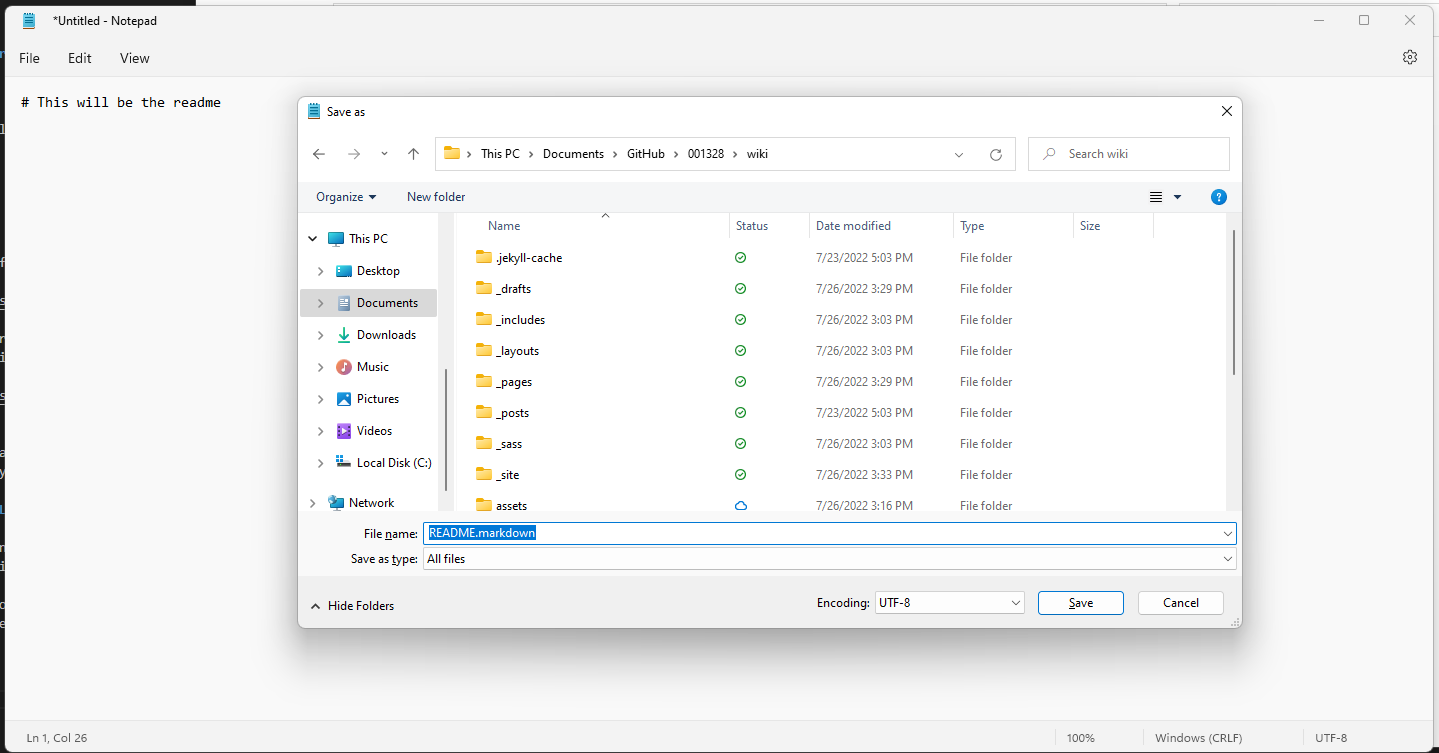
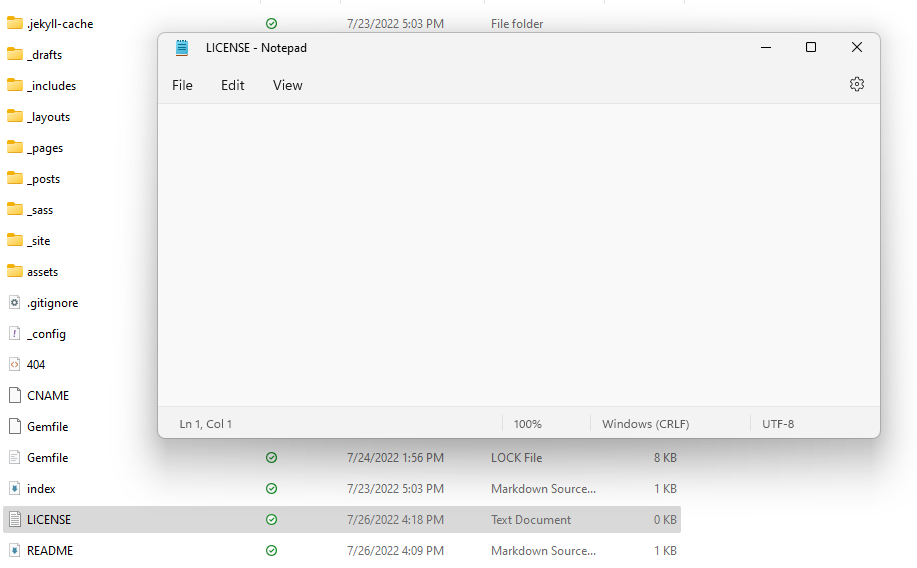
<p>The easiest way to do this is to create a new file and save it as <strong>README</strong> with the markdown extension.
Once you push it to GitHub its content will be displayed below your files.
You can populate it just like any other post or page with markdown.</p>

<p><img src="/assets/images/website_custom1.png" alt="picture" /></p>

<p>Then create another file and save it as <strong>LICENSE</strong> without any extension</p>

<p><img src="/assets/images/website_custom2.png" alt="picture" /></p>

<p>Now push everything to GitHub and open it there to edit (the little pencil on the bottom right).
<img src="/assets/images/website_custom3.png" alt="picture" /></p>

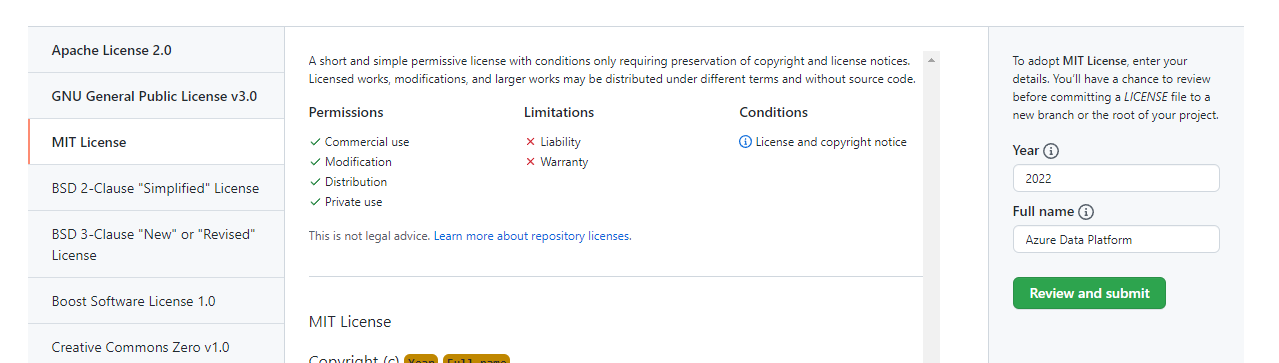
<p>this give you the option to choose a standard license template:
<img src="/assets/images/website_custom4.png" alt="picture" /></p>

<p>I chose the MIT License and commit at the bottom, create a pull request and then delete the branch <strong>add-license-1</strong> and the file LICENSE.txt
<img src="/assets/images/website_custom5.png" alt="picture" /></p>

<p>Check if there is still the other LICENSE.txt file in the repository. 
If so you can delete it</p>

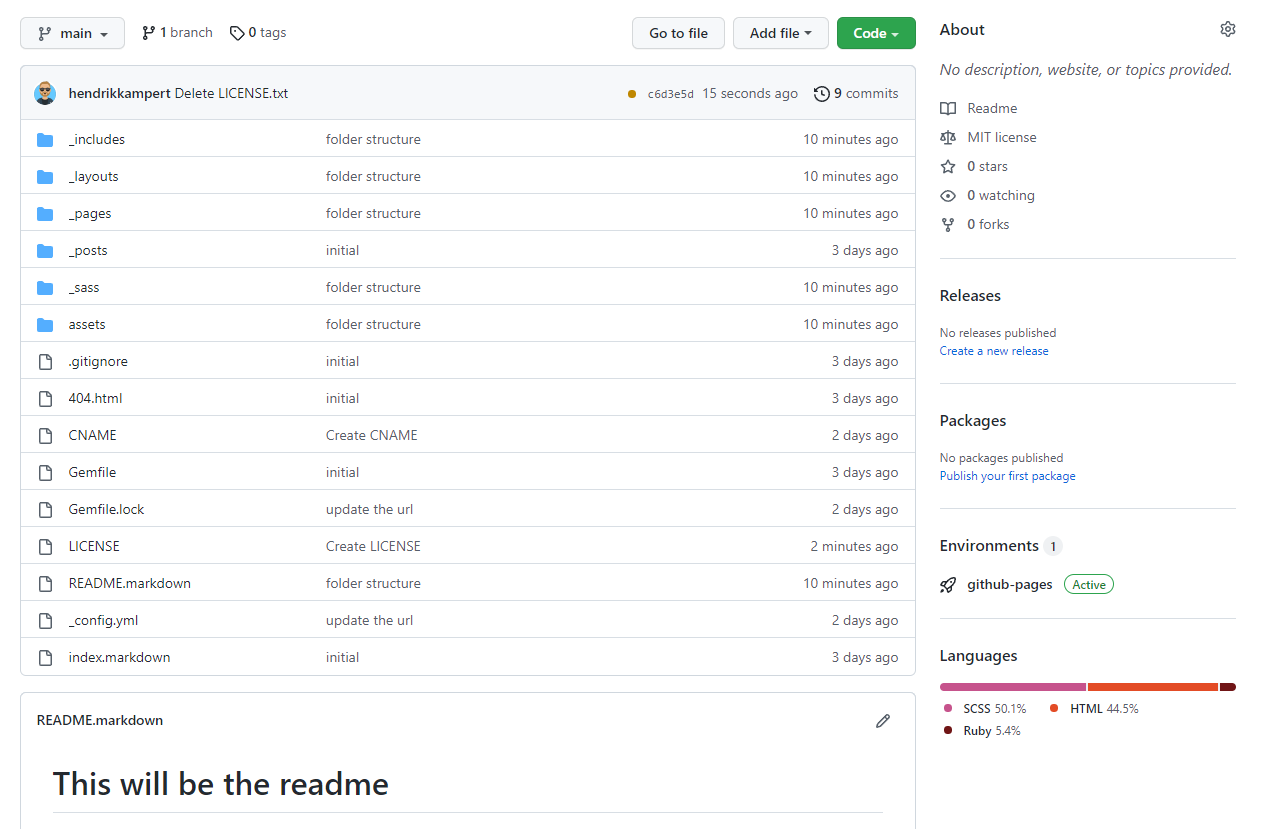
<h1 id="great-job">Great Job!</h1>

<p>This is how it should look like now</p>

<p><img src="/assets/images/website_custom6.png" alt="picture" /></p>

<h2 id="add-a-favicon">Add a favicon</h2>

<p>adding a <a href="https://en.wikipedia.org/wiki/Favicon" target="_blank">favicon</a> is a fun thing to do</p>

<blockquote>
  <p>a favicon is the “favorite icon” you can see on top of a website</p>
</blockquote>

<p>One way to do a quick favicon is to use powerpoint and Quickly draw something.</p>

<p><img src="/assets/images/website_favicon1.png" alt="picture" /></p>

<p>Now you can put this image into the <a href="https://realfavicongenerator.net/" target="_blank">favicon generator</a></p>

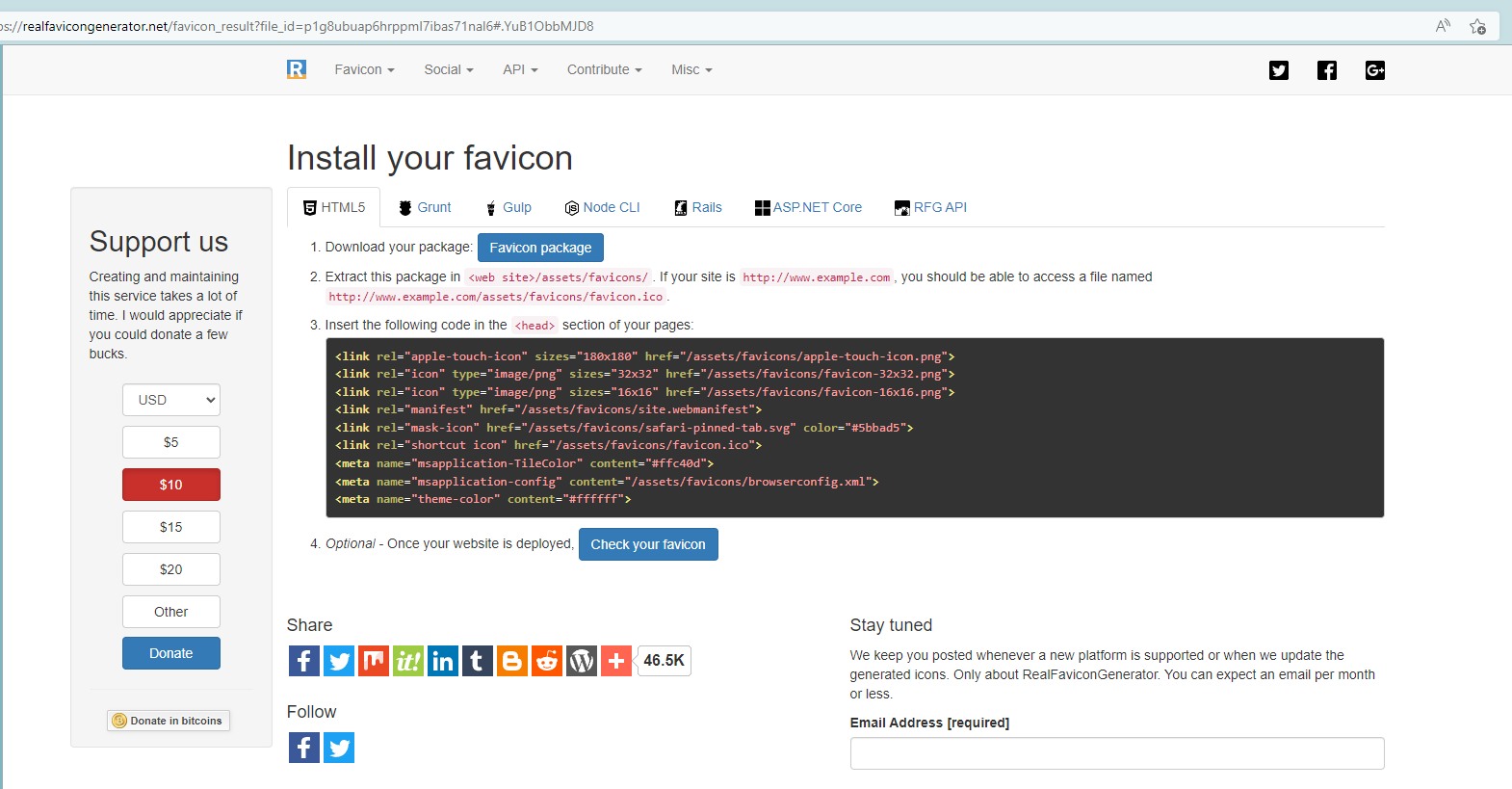
<p>after it is generated the favicon generator give you everything you need to put it in your head.html
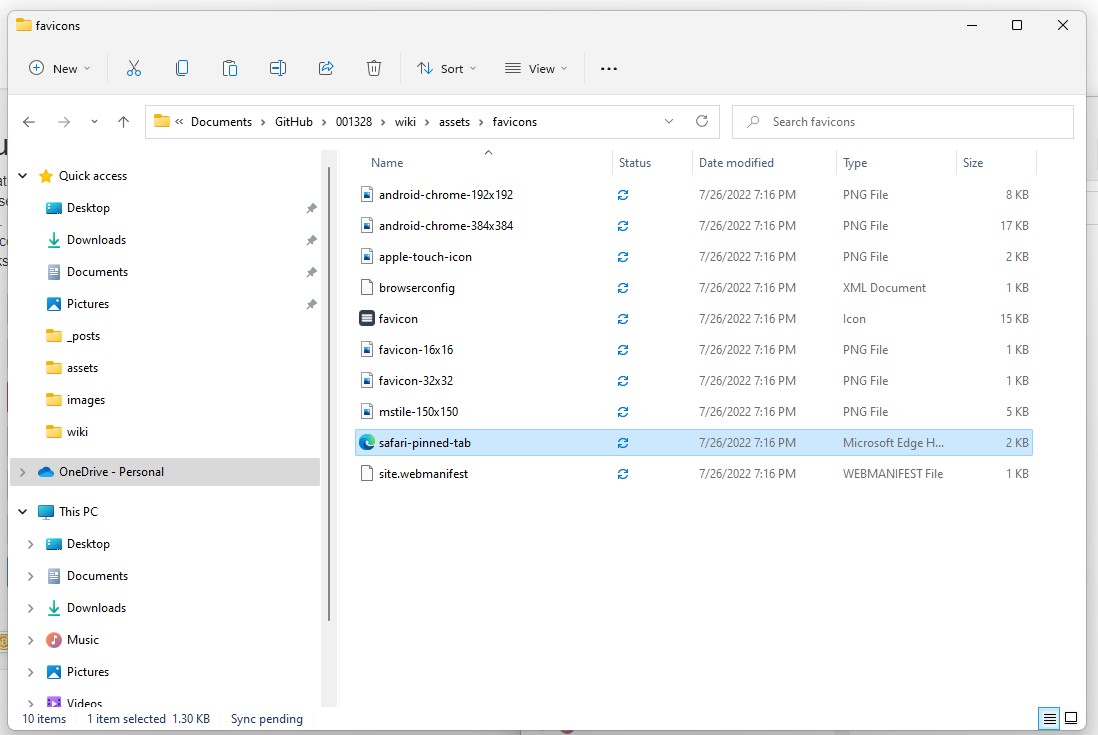
just download the package and place it in a folder “favicon” under “assets”</p>

<p><img src="/assets/images/website_favicon2.png" alt="picture" /></p>

<p><img src="/assets/images/website_favicon3.png" alt="picture" /></p>

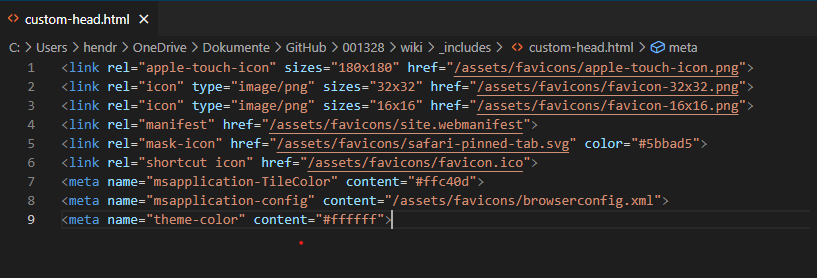
<p>Next go to the folder _includes and create a new file <strong>custom-head.html</strong></p>

<p>here, paste the code from the favicon generator</p>

<div class="language-plaintext highlighter-rouge"><div class="highlight"><pre class="highlight"><code>&lt;link rel="apple-touch-icon" sizes="180x180" href="/assets/favicons/apple-touch-icon.png"&gt;
&lt;link rel="icon" type="image/png" sizes="32x32" href="/assets/favicons/favicon-32x32.png"&gt;
&lt;link rel="icon" type="image/png" sizes="16x16" href="/assets/favicons/favicon-16x16.png"&gt;
&lt;link rel="manifest" href="/assets/favicons/site.webmanifest"&gt;
&lt;link rel="mask-icon" href="/assets/favicons/safari-pinned-tab.svg" color="#5bbad5"&gt;
&lt;link rel="shortcut icon" href="/assets/favicons/favicon.ico"&gt;
&lt;meta name="msapplication-TileColor" content="#ffc40d"&gt;
&lt;meta name="msapplication-config" content="/assets/favicons/browserconfig.xml"&gt;
&lt;meta name="theme-color" content="#ffffff"&gt;
</code></pre></div></div>

<p><img src="/assets/images/website_favicon4.png" alt="picture" /></p>

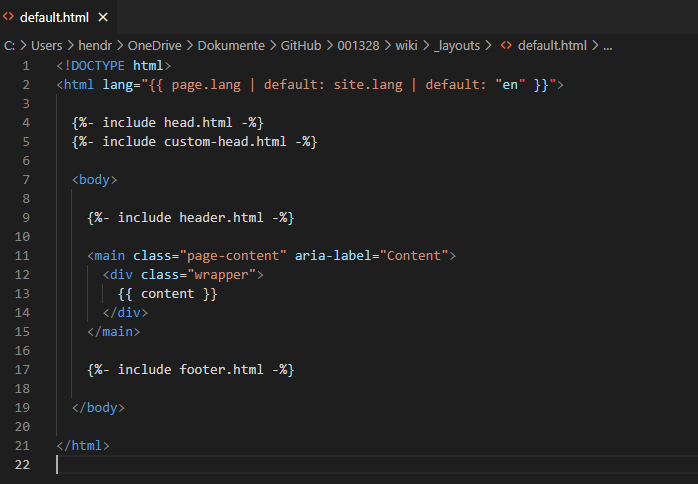
<p>After you saved it go to <strong>_layouts/default.html</strong> and add the following code</p>

<p><code class="language-plaintext highlighter-rouge">%- include custom-head.html -%</code></p>

<p><img src="/assets/images/website_favicon5.png" alt="picture" /></p>

<p>After you pushed it to github you can enter your domain into the <a href="https://realfavicongenerator.net/favicon_checker?ignore_root_issues=true#.YuCIubbMJD8" target="_blank">favicon checker</a></p>

<p><img src="/assets/images/website_favicon6.png" alt="picture" /></p>

<h2 id="change-the-title--description">Change the Title &amp; Description</h2>

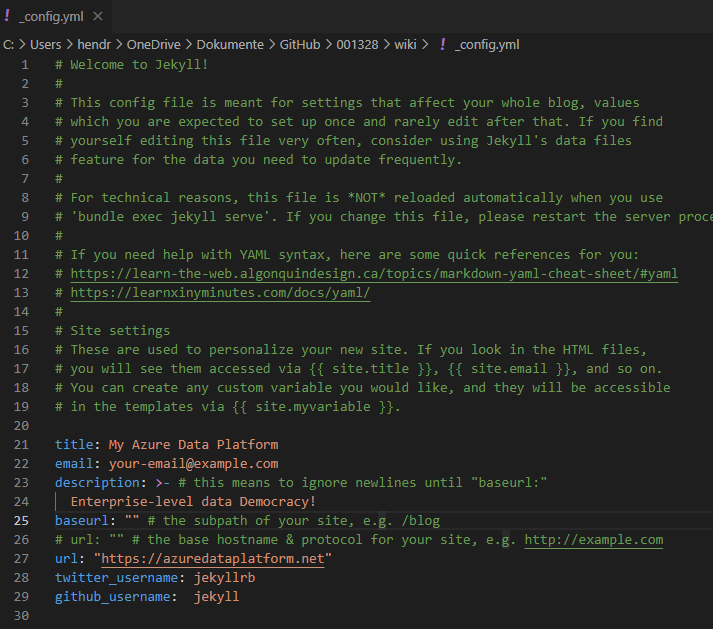
<p>You can change the title and description of your website in the <strong>_config</strong> file.</p>

<p><img src="/assets/images/website_title1.png" alt="picture" /></p>

<p>and that’s already it.</p>

<h2 id="change-the-footer">Change the Footer</h2>

<p>Now let’s see if we can make the Footer how we want it.</p>

<p>In my opinion all that Design stuff should be done by designers, I just want to make fast and simple adjustments so I have something I am happy with.</p>

<p>That means for me:</p>
<ul>
  <li>remove my personal email</li>
  <li>remove twitter and add linkedin an rss</li>
</ul>

<p>all you need to do is to go into the <strong>_config</strong> file and do these steps:</p>
<ul>
  <li>remove the email</li>
  <li>remove twitter_username</li>
  <li>add linkedin_username: youruser</li>
  <li>add rss: subscribe</li>
</ul>

<p><img src="/assets/images/website_footer1.png" alt="picture" /></p>

<p>last step is to remove the texztx “subscribe via RSS” from the main page.
go to <strong>home.html</strong> and remove line 31</p>

<p><img src="/assets/images/website_footer2.png" alt="picture" /></p>

<h2 id="change-the-permalink">Change the permalink</h2>

<p>I don’t want the URL structure to include the date but I like it a little simpler.</p>

<p>To adjust the URL go to your <strong>_conf</strong> file and add this line</p>

<figure class="highlight"><pre><code class="language-markdown" data-lang="markdown">permalink: /blog/:title/</code></pre></figure>

<p><img src="/assets/images/customize-part2-1.png" alt="picture" /></p>]]></content><author><name>Hendrik Kampert</name></author><category term="tutorial" /><category term="github-pages" /><summary type="html"><![CDATA[In the last post we started to customized the folder structure of our new template. Now we want to work a little on the content.]]></summary></entry><entry><title type="html">GitHub pages 3 | Customize the template 1</title><link href="https://azuredataplatform.net/blog/GHpages3-customize-1/" rel="alternate" type="text/html" title="GitHub pages 3 | Customize the template 1" /><published>2022-07-26T05:00:00+00:00</published><updated>2022-07-26T05:00:00+00:00</updated><id>https://azuredataplatform.net/blog/GHpages3-customize-1</id><content type="html" xml:base="https://azuredataplatform.net/blog/GHpages3-customize-1/"><![CDATA[<p>Our initial Website is now set up. 
Let’s really make it ours by understanding the template and customize it.</p>

<p>Steps:</p>
<ul>
  <li>understand the current theme</li>
  <li>adjust</li>
  <li>build a clean <em>“vanilla”</em> folder structure</li>
</ul>

<h1 id="understand-our-theme">Understand our theme</h1>

<p>To really make this website yours we will move the folder structure of your theme into your working folder.
This way you have a great (<strong>secure!!!</strong>) base and we can start <strong>customizing</strong>.</p>

<ul>
  <li>First, we will look at the current structure</li>
</ul>

<p>To do so, please open command prompt and go to the directory of your wiki</p>

<div class="language-plaintext highlighter-rouge"><div class="highlight"><pre class="highlight"><code>cd xxx/GitHub/001328/wiki
</code></pre></div></div>

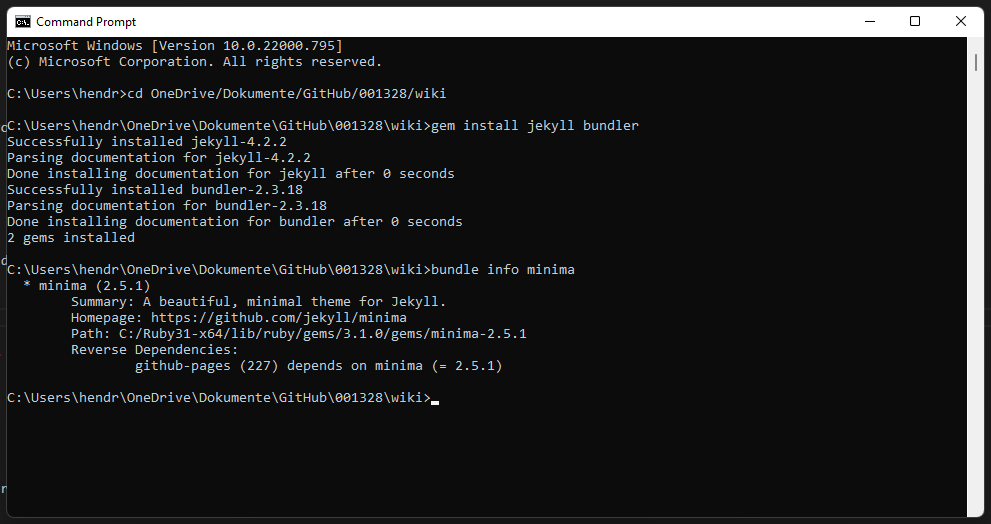
<p>From here, ensure the jekyll bundler is installed</p>
<div class="language-plaintext highlighter-rouge"><div class="highlight"><pre class="highlight"><code>gem install jekyll bundler
</code></pre></div></div>

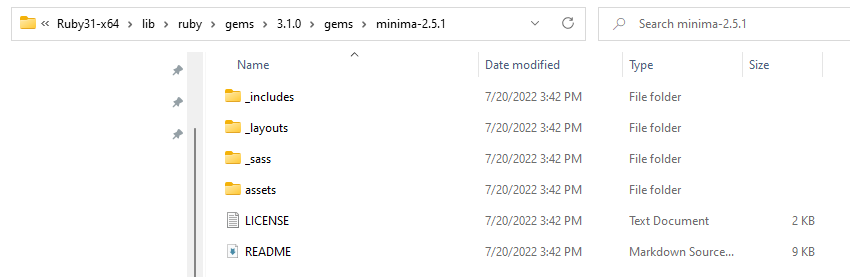
<p>then execute the following code, it will point you to the path where the jekyll theme you are using is installed
(for me it is here: C:\Ruby31-x64\lib\ruby\gems\3.1.0\gems\minima-2.5.1)</p>

<div class="language-plaintext highlighter-rouge"><div class="highlight"><pre class="highlight"><code>bundle info minima
</code></pre></div></div>

<p>jekyll has a very neat feature: if you want you can have adjust a template with new folders etc and it will first look into your main folder.
If it doesn’t find sth it needs it will then look into the theme folder.</p>

<p><img src="/assets/images/website_folder1.png" alt="folder structure" /></p>

<p>You will see something like this:</p>

<p><img src="/assets/images/website_folder2.png" alt="picture" /></p>

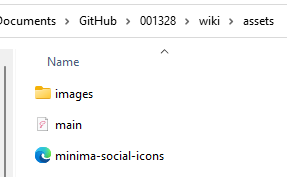
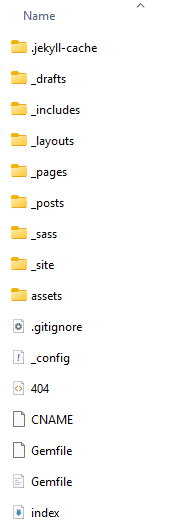
<p>To understand the process and to fully customize, we can just copy the <strong>folders</strong> into your github folder.
Do not copy the License or the readme, we will add this later</p>

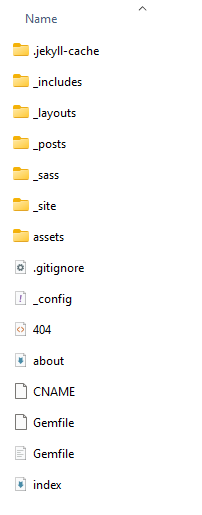
<p>this is how your folder should look like now:</p>

<p><img src="/assets/images/website_folder3.png" alt="picture" /></p>

<h2 id="what-did-we-just-copy">what did we just copy?</h2>

<ul>
  <li>_includes - here the fine-grained html-files are included that are used by the layouts</li>
  <li>_layouts - container for the base layouts, post.html for example is the layout for any posts. it uses the default.html file as a base. default again uses head.html, header.html and footer.html</li>
  <li>_sass - this is the container for all the sass files (make it <strong>pretty</strong>)</li>
  <li>assets - here everything is stored that the website needs - images for example</li>
</ul>

<blockquote>
  <p><strong>the great thing is that you can now quickly screen every file for anything you don’t like</strong>
from an enterprise perspective I am always worried I miss something that I don’t want in an internal wiki, often “free” templates have ads for example and I would rather not have one in an internal wiki.. ;)</p>
</blockquote>

<h2 id="next-step-add-some-organization-with-a-few-more-folders">next step: add some organization with a few more folders</h2>

<h1 id="image-folder">image folder</h1>

<p>Next I want to add an image folder as it makes sense to me that images should be organized somewhat</p>

<p><img src="/assets/images/website_folder4.png" alt="picture" /></p>

<h1 id="drafts-folder">drafts folder</h1>

<p>add a folder <strong>_drafts</strong> to store blog entries that are not ready to publish yet.
the great feature of jekyll here is that you can run and test your website locally that takes this folder into account so you can see it how it would look like</p>

<div class="language-plaintext highlighter-rouge"><div class="highlight"><pre class="highlight"><code>bundle exec jekyll serve --drafts
</code></pre></div></div>

<h1 id="pages-folder">pages folder</h1>

<p>let’s also add a folder <strong>_pages</strong> to store the html pages we want to build.</p>

<p><img src="/assets/images/website_folder5.png" alt="picture" /></p>

<p>Currently there are two separate pages, <em>index</em> and <em>about</em>. The index page always needs to be at the root folder so <strong>please do not move it</strong>
personal opinion incoming: it seems to be best practice though to move the about page and all other pages you maybe want to add to the _pages folder</p>

<p><img src="/assets/images/website_folder6.png" alt="picture" /></p>

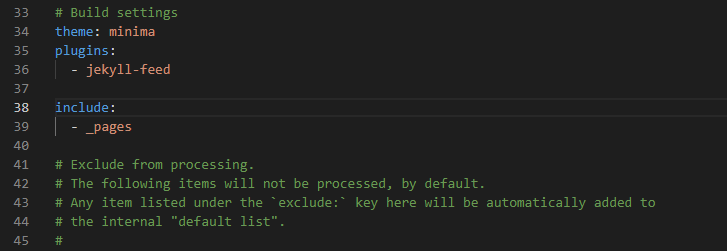
<p>last step is to go into the config file and add</p>

<div class="language-plaintext highlighter-rouge"><div class="highlight"><pre class="highlight"><code>include:
  - _pages
</code></pre></div></div>

<p><img src="/assets/images/website_folder7.png" alt="picture" /></p>

<blockquote>
  <p>GREAT! now we have a pretty solid and sustainable folder structure!
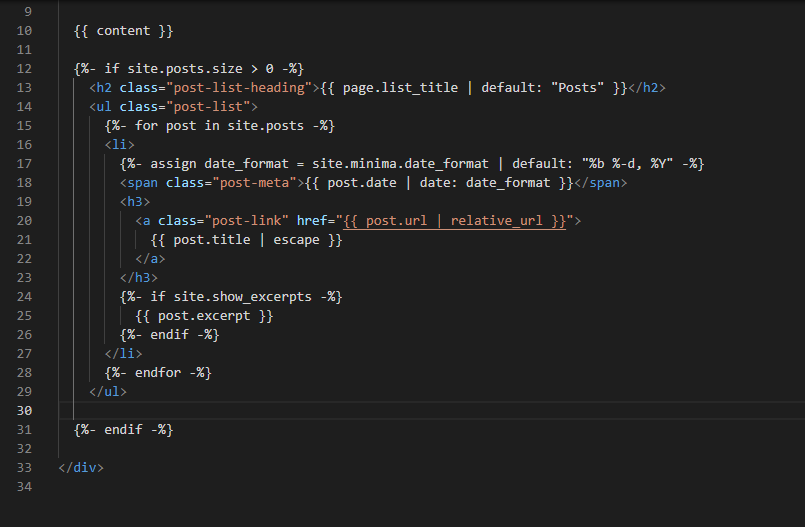
Before doing anyting else, please run <code class="language-plaintext highlighter-rouge">bundle exec jekyll serve</code> to check if everything still works</p>
</blockquote>

<h1 id="examples">Examples</h1>

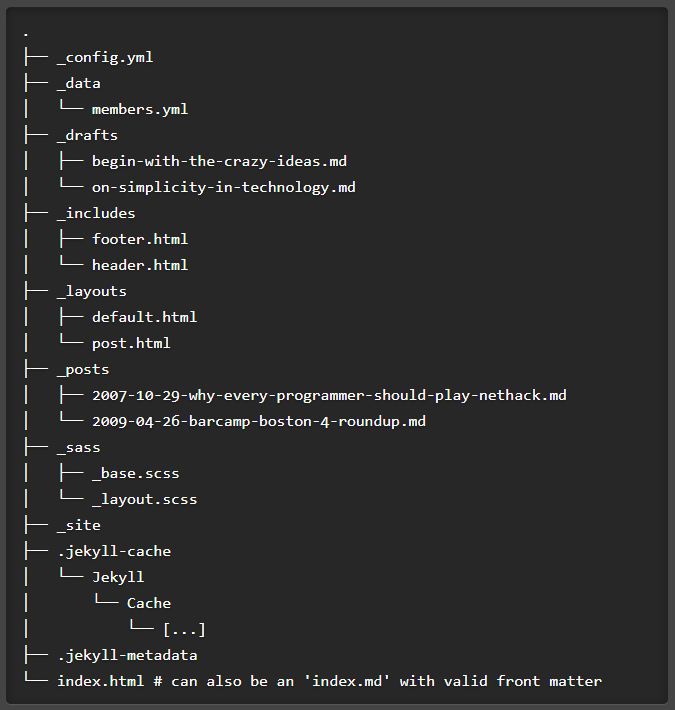
<p>you can find an example folder structure <a href="https://jekyllrb.com/docs/structure/" target="_blank">here</a>
<img src="/assets/images/website_folder10.png" alt="folder structure" /></p>

<blockquote>
  <p>These are other great themes that can give you some inspiration and folder structure:</p>

  <p><a href="https://mmistakes.github.io/minimal-mistakes/docs/quick-start-guide/">minimal-mistakes</a>/
<a href="https://github.com/mmistakes/minimal-mistakes">github</a></p>

  <p><a href="https://beautifuljekyll.com/">beautifuljekyll</a>/
<a href="https://github.com/daattali/beautiful-jekyll">github</a></p>
</blockquote>]]></content><author><name>Hendrik Kampert</name></author><category term="tutorial" /><category term="github-pages" /><summary type="html"><![CDATA[Our initial Website is now set up. Let’s really make it ours by understanding the template and customize it.]]></summary></entry><entry><title type="html">GitHub pages 2 | Get a custom domain name</title><link href="https://azuredataplatform.net/blog/GHpages2-custom-domain/" rel="alternate" type="text/html" title="GitHub pages 2 | Get a custom domain name" /><published>2022-07-24T05:05:00+00:00</published><updated>2022-07-24T05:05:00+00:00</updated><id>https://azuredataplatform.net/blog/GHpages2-custom-domain</id><content type="html" xml:base="https://azuredataplatform.net/blog/GHpages2-custom-domain/"><![CDATA[<p>Now we want to give our new website a cool looking name.</p>

<p>The product I am building is called the azure data platform, so I want to use <a href="https:azuredataplatform.net">azuredataplatform.net</a></p>

<blockquote>
  <p>Steps:</p>
  <ol>
    <li>Find a great domain and buy it</li>
    <li>Point the domain to GitHub</li>
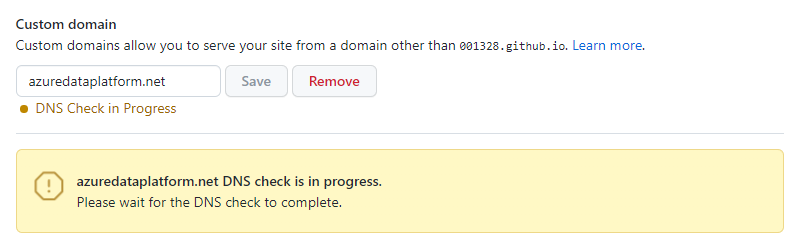
    <li>add the domain to GitHub</li>
  </ol>
</blockquote>

<h1 id="step-1-find-a-great-domain-and-buy-it">Step 1: Find a great domain and buy it</h1>
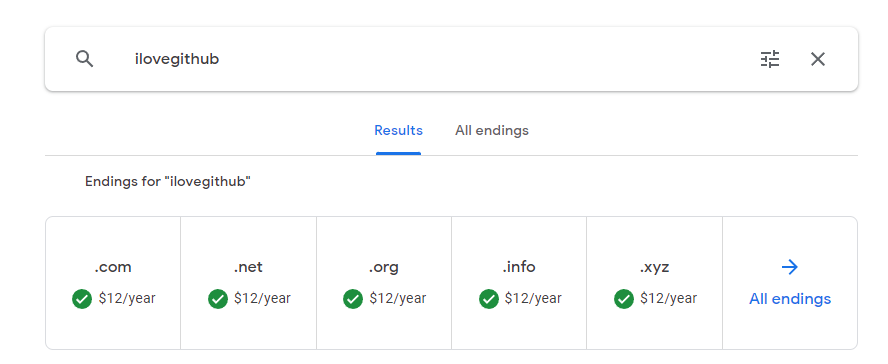
<p>There are tons of locations where you can buy a domain.
One of the biggest is <a href="https://www.godaddy.com">GoDaddy</a>, I prefer <a href="https://domains.google.com">Google Domains</a> because their prices appear to be more stable to me.</p>

<p><img src="/assets/images/website_domain1.png" alt="domain1" /></p>

<p>Once you bought it it will appear under <strong>My domains</strong> and you can go to the properties with the <strong>Manage</strong> Button
<img src="/assets/images/website_domain2.png" alt="domain2" /></p>

<blockquote>
  <p>I will use my own site <em>azuredataplatform.net</em></p>
</blockquote>

<h1 id="step-2-point-the-domain-to-github">Step 2: Point the domain to GitHub</h1>

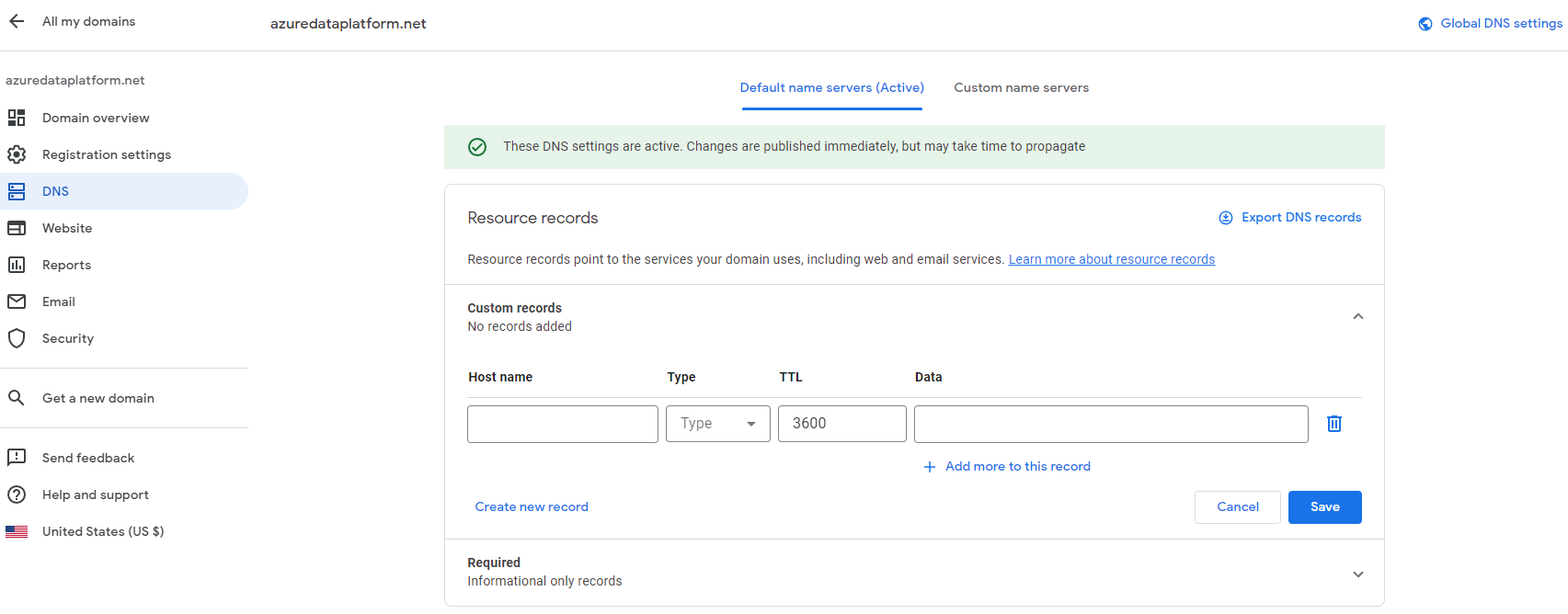
<p>In the <em>Manage</em> Settings you will find <em>DNS</em>
<img src="/assets/images/website_domain3.png" alt="domain3" /></p>

<p>From here we need to point the new domain to GitHub
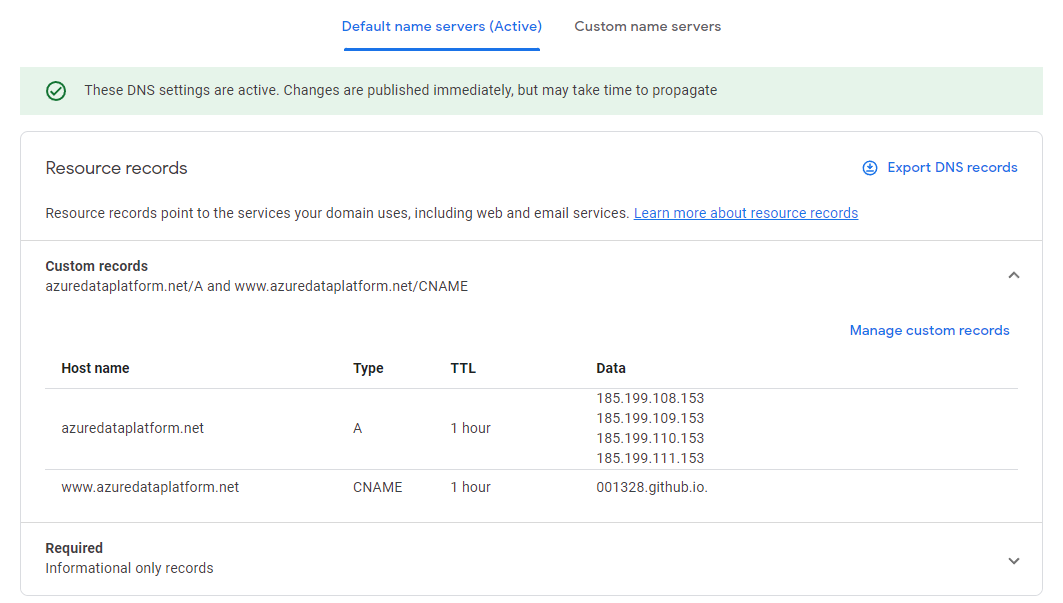
To do so, please add 2 custom records:
    1. Type A record
    1. Type CNAME record</p>

<p>The Type a record needs to point to GitHubs IP-Addresses. Do not put anything in the field “Host name”.
Enter the following records into the field “Data” (add more with the +)</p>
<ul>
  <li>185.199.108.153</li>
  <li>185.199.109.153</li>
  <li>185.199.110.153</li>
  <li>185.199.111.153</li>
</ul>

<p>The Type CNAME record needs to point to your GitHub repository. Please create a new record and enter <strong>www</strong> in the field “Host name”. 
Enter the following record into the field “Data”.</p>
<ul>
  <li>001328.github.io</li>
</ul>

<p>Then hit <em>Save</em>
<img src="/assets/images/website_domain4.png" alt="domain4" /></p>

<h1 id="step-3-add-the-domain-to-github">Step 3: add the domain to GitHub</h1>

<p>Now go to your github repository, open the settings for <strong>Pages</strong> and enter your newly created domain into the field for <strong>Custom domain</strong> and Save</p>

<p>It will check the DNS records you just made and once successful publish your new website.
<img src="/assets/images/website_domain5.png" alt="domain5" /></p>

<p>Once the DNS check is successful your website is published with your new name!
Please be aware that GitHub needs to provision a TLS certificate to ensure it’s secure.
<img src="/assets/images/website_domain6.png" alt="domain6" /></p>

<p>Once the certificate is provisioned, select the option <strong>Enforce HTTPS</strong>
<img src="/assets/images/website_domain7.png" alt="domain7" /></p>

<blockquote>
  <p>Attention: It can take an hour until your website works properly</p>
</blockquote>

<h1 id="step-4-fix-css">Step 4: Fix CSS</h1>

<p>When you change your domain name your website will probably look like this
<img src="/assets/images/website_domain8.png" alt="domain8" /></p>

<p>To fix it just adjust the baseurl and url in your local config file, then push the changes to github
<img src="/assets/images/website_domain9.png" alt="domain9" /></p>

<blockquote>
  <p>remember to wait 1 Minute so the CSS can load</p>
</blockquote>

<p>The final result:
<img src="/assets/images/website_domain10.png" alt="domain10" /></p>

<h1 id="the-end">The End</h1>

<blockquote>
  <p>This Tutorial follows the offical <a href="https://docs.github.com/en/pages/configuring-a-custom-domain-for-your-github-pages-site">Github Docs</a> with a littlle help from <a href="https://hossainkhan.medium.com/using-custom-domain-for-github-pages-86b303d3918a">this guy</a></p>
</blockquote>

<blockquote>
  <p>By the way - DNS means <strong>Domain Name Service</strong></p>
</blockquote>]]></content><author><name>Hendrik Kampert</name></author><category term="website" /><category term="github-pages" /><summary type="html"><![CDATA[Now we want to give our new website a cool looking name.]]></summary></entry><entry><title type="html">GitHub pages 1 | Build a jekyll website</title><link href="https://azuredataplatform.net/blog/GHpages1-build-a-website/" rel="alternate" type="text/html" title="GitHub pages 1 | Build a jekyll website" /><published>2022-07-23T05:00:00+00:00</published><updated>2022-07-23T05:00:00+00:00</updated><id>https://azuredataplatform.net/blog/GHpages1-build-a-website</id><content type="html" xml:base="https://azuredataplatform.net/blog/GHpages1-build-a-website/"><![CDATA[<p>This post explains how to build a simple website and host it for free.
We will use <strong>GitHub pages</strong> and <strong>Jekyll</strong> and follow the instructions of <a href="https://jekyllrb.com/">jekyllrb</a> with a focus on getting you up and running as fast as possible.
I use their vanilla template <em>minima</em> for these reasons:</p>

<ul>
  <li>zero trust (I don’t know what others put into it) - but if you follow these steps you can build <em>your own</em>, perfect template</li>
  <li>version updates</li>
  <li>readability - a vanilla template is easy to scan</li>
  <li>customizing - if I customize a vanilla template everyone can participate easily</li>
</ul>

<p>Steps:</p>
<ol>
  <li>Create new repository</li>
  <li>Install Jekyll</li>
  <li>Run Jekyll locally with Vanilla template</li>
  <li>Publish to GitHub</li>
</ol>

<h1 id="step-1-github-repository">Step 1: GitHub Repository</h1>

<ul>
  <li>Go to <a href="https://github.com/">github</a> and create a new Repository
    <blockquote>
      <p>I created a dedicated organization (001328) for it as I want all repositories of my <strong>azure data platform</strong> grouped together and I have it public so it’s free. If you do this for a company either make it private or use github enterprise</p>
    </blockquote>
  </li>
</ul>

<p><img src="/assets/images/website_newrepository.png" alt="newrepo" /></p>
<ul>
  <li>clone the new repository (wiki) to your local computer, use any local path you like
    <blockquote>
      <ul>
        <li>(link - top set up a github account / organisation)</li>
        <li>(link - how to set up github on your local computer)</li>
      </ul>
    </blockquote>
  </li>
  <li>
    <p>you will find the url in your github repo
<img src="/assets/images/website_clone1.png" alt="clone1" /></p>
  </li>
  <li>
    <p>open github desktop and clone your <strong>new repository</strong> to your computer via the <em>Add Button</em>
<img src="/assets/images/website_clone2.png" alt="clone2" /></p>
  </li>
  <li>
    <p>enter the URL you copied from github.com
<img src="/assets/images/website_clone3.png" alt="clone3" /></p>
  </li>
  <li>once cloned you have an empty folder on your local machine
<img src="/assets/images/website_clone4.png" alt="clone4" /></li>
</ul>

<h1 id="step-2-install-jekyll">Step 2: Install Jekyll</h1>

<p>Following the quickstart instructions on <a href="https://jekyllrb.com/docs/">jekyllrb</a> provides you a great starting website with the very simpel <em>minima</em> template.
To host it for free we will change only one step.</p>

<ul>
  <li>installation for windows (you can find other guides <a href="https://jekyllrb.com/docs/installation/#requirements">here</a>)
    <ol>
      <li><a href="https://rubyinstaller.org/downloads/">Download</a> and install Ruby+Devkit with default options.
<img src="/assets/images/website_rubyinstaller.png" alt="rubyinstaller" /></li>
      <li>Run the ridk install step and choose the options MSYS2 and MINGW development tool chain
        <blockquote>
          <p>open command prompt and check for proper installation with <code class="language-plaintext highlighter-rouge">ruby -v</code></p>
        </blockquote>
      </li>
    </ol>
  </li>
</ul>

<h1 id="step-3-run-your-website-locally">Step 3: run your website locally</h1>

<ol>
  <li>
    <p>open command prompt and go to the cloned directory <code class="language-plaintext highlighter-rouge">cd xxx/GitHub/001328</code>
  do not cd into the folder <strong>yet</strong></p>
  </li>
  <li>Open command prompt window (start+cmd), install via <code class="language-plaintext highlighter-rouge">gem install jekyll bundler</code>
    <blockquote>
      <p>open command prompt and check for proper installation with <code class="language-plaintext highlighter-rouge">jekyll -v</code></p>
    </blockquote>
  </li>
  <li>create a new jekyll site <strong>into</strong> the newly created repository folder <code class="language-plaintext highlighter-rouge">jekyll new wiki</code></li>
  <li>change into your new directory <code class="language-plaintext highlighter-rouge">cd wiki</code></li>
  <li>Build the site and make it available on a local server <code class="language-plaintext highlighter-rouge">bundle exec jekyll serve</code>
    <blockquote>
      <p>use <code class="language-plaintext highlighter-rouge">bundle exec jekyll serve --livereload so it reflects changes</code></p>
    </blockquote>
  </li>
  <li>Browse to <strong><a href="http://localhost:4000">http://localhost:4000</a></strong></li>
</ol>

<blockquote>
  <p>in July 2023 there was the <strong>webrick gem missing</strong> - add it via <code class="language-plaintext highlighter-rouge">bundle add gem webrick</code>
    <img src="/assets/images/website_clone5error.png" alt="clone5error" /></p>
</blockquote>

<h1 id="step-4-publish-to-github-pages">Step 4: publish to github-pages</h1>

<ol>
  <li>open the gemfile in the new directory (right click and open with visual studio code or <a href="https://notepad-plus-plus.org/">notepad++</a>)
    <ul>
      <li>comment line 10 (put a # in front), uncomment line 15 (<strong>gem “github-pages”</strong>)</li>
    </ul>
  </li>
  <li>open the config file in the new directory  (add new lines and comment out the other ones)
    <ul>
      <li>baseurl: “/wiki”</li>
      <li>url: “https://001328/github.io”
  <img src="/assets/images/website_publish1.png" alt="publish1" /></li>
    </ul>
  </li>
</ol>

<p>Note: If you want to publish your website to enterprise github you need to put the enterprise github address into <strong>url</strong>  and your organization/repo in <strong>baseurl</strong></p>

<figure class="highlight"><pre><code class="language-html" data-lang="html">baseurl: "/organization/repository/"
url: "https://pages.git.xxx.com"</code></pre></figure>

<ol>
  <li>publish to github in repo (commit and push to main branch)
<img src="/assets/images/website_publish2.png" alt="publish2" /></li>
</ol>

<blockquote>
  <p>you will now see a folder _posts and some files
<img src="/assets/images/website_publish3.png" alt="publish3" /></p>
</blockquote>

<ol>
  <li>make a github page out of it
    <ul>
      <li>go to the settings within your repository</li>
      <li>open the menu “Pages”</li>
      <li>enable GitHub pages with the main branch</li>
      <li>check it out here: https://001328.github.io/wiki/ n(make this your address)
  <img src="/assets/images/website_publish4.png" alt="publish4" /></li>
    </ul>
  </li>
  <li>wait <strong>1 minute</strong> so the css can load within github pages
<img src="/assets/images/website_publish5.png" alt="publish5" /></li>
</ol>

<blockquote>
  <p>Attention: if you want to <strong>run it local</strong>, you need to adjust the config file again so baseurl and url are empty (Step 2)</p>
</blockquote>

<h2 id="next-steps">Next Steps</h2>

<p>Now we can create our own domain and give it a custom name!</p>

<h2 id="other">Other</h2>

<h1 id="minima">minima</h1>

<p><em>Minima is a one-size-fits-all Jekyll theme for writers</em>. It’s Jekyll’s default (and first) theme. It’s what you get when you run <code class="language-plaintext highlighter-rouge">jekyll new</code>.</p>

<p><a href="https://jekyll.github.io/minima/">Theme preview</a></p>

<p><strong>We will take this as the base for the section of creating-content</strong></p>]]></content><author><name>Hendrik Kampert</name></author><category term="tutorial" /><category term="github-pages" /><summary type="html"><![CDATA[This post explains how to build a simple website and host it for free. We will use GitHub pages and Jekyll and follow the instructions of jekyllrb with a focus on getting you up and running as fast as possible. I use their vanilla template minima for these reasons:]]></summary></entry></feed>